Archive for the ‘Charting’ Category.

Importing Fixed Width Text Files

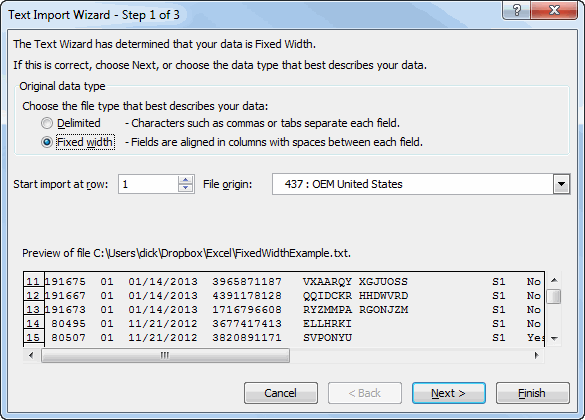
I’ve been working with fixed width text files quite a bit lately. The built-in method for importing these files is terrible. First, it’s yet another wizard and I think it would be better as a single form (but then I think everything is better as a single form). The worst part, by far, is the tiny window that shows a preview of your data.

After a few days of using this wizard, it was pretty obvious that I was going to write my own, if for no other reason than to make that window bigger. My importer would be significantly different than Excel’s. Microsoft has to make their method flexible and universal, but I don’t. I know certain things about my text files and can build in some assumptions to make things better. For one, my files have repeating page headers. While Excel allows you to start your import at something other than first row to skip all that crap, it doesn’t do me any good because there’s just more crap to come.

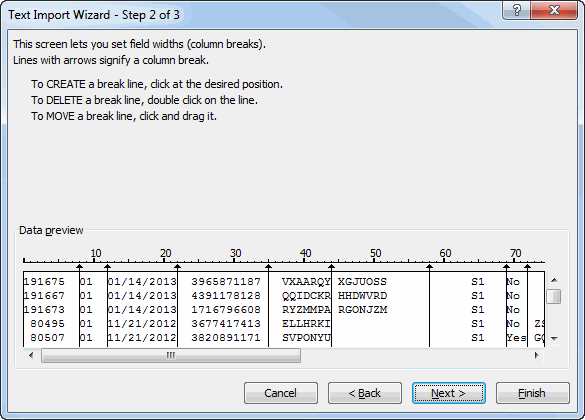
Step 2 of the wizard allows you to add, delete, and move the dividing lines that delineate your columns. I find that Excel does a pretty poor job at placing these lines. But I grant that I haven’t used this on a wide variety of files so it’s entirely possible that their algorithm is the best – it’s just not the best for the types of files I’m using.

Did you think I was going to blow by this step without commenting on the lack of keyboard support? Not a chance. To move the lines, click them and drag them. To add a line, single click. To delete a line, double click. Actually, to delete a line, double click next to the line you want to delete, then double click that new line to delete it, then carefully double click on the original line to delete it. You know what I’m talking about. Click, click, click. Where’s the keyboard love?

The lack of large enough preview window really hurts on this step. I’ll discuss determining where the column lines should go later in this post. Normally after step 2, I just hit finish. But let’s take a look at the last step anyway.

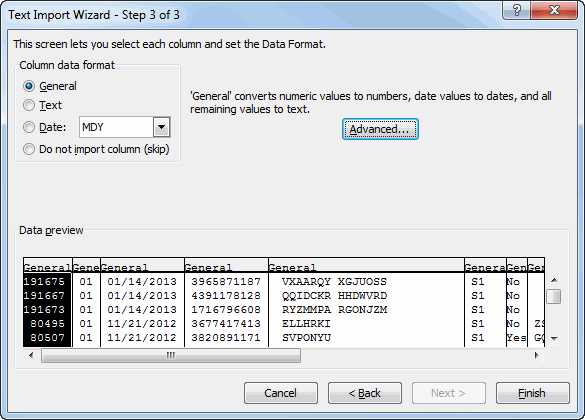
I don’t use this step much because the defaults are really good. As much as I don’t like wizards, I have to give MS props for putting a Finish button on step 2 so I can skip step 3. Now that you’ve defined your columns, this step allows you to specify a data type. The General type works well for most situations, but if you have some text that happens to look like a number, it’s best to set the column to the Text format.

Under the Advanced button, you can switch what decimals and commas mean and, most importantly to me, tell it how to handle trailing minus signs.

So back to how nothing’s ever good enough and I can do everything better. I’m only dealing with fixed width files and I’m always starting on the first row, so step 1 of the wizard is gone. Step 2 and 3 could be combined, I think. It should draw a combobox over each column that let’s you choose the format. When you add or delete columns, it redraws the boxes. The best use of resources is getting the columns right in the first place. If you don’t have to move columns because it guesses so well, then the whole thing becomes a breeze.

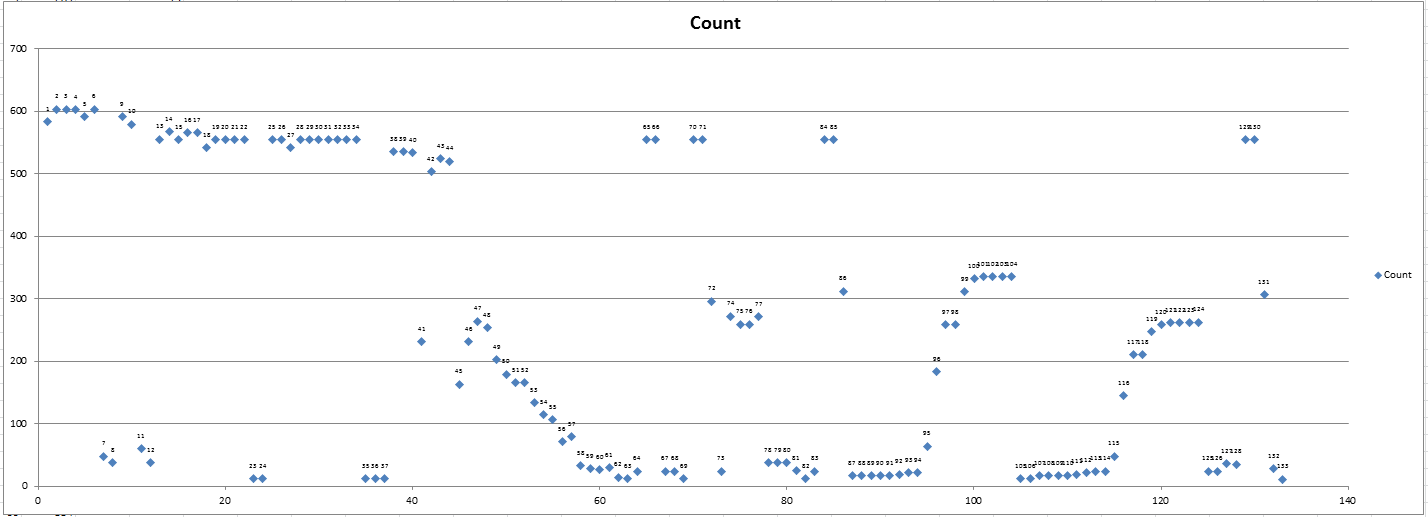
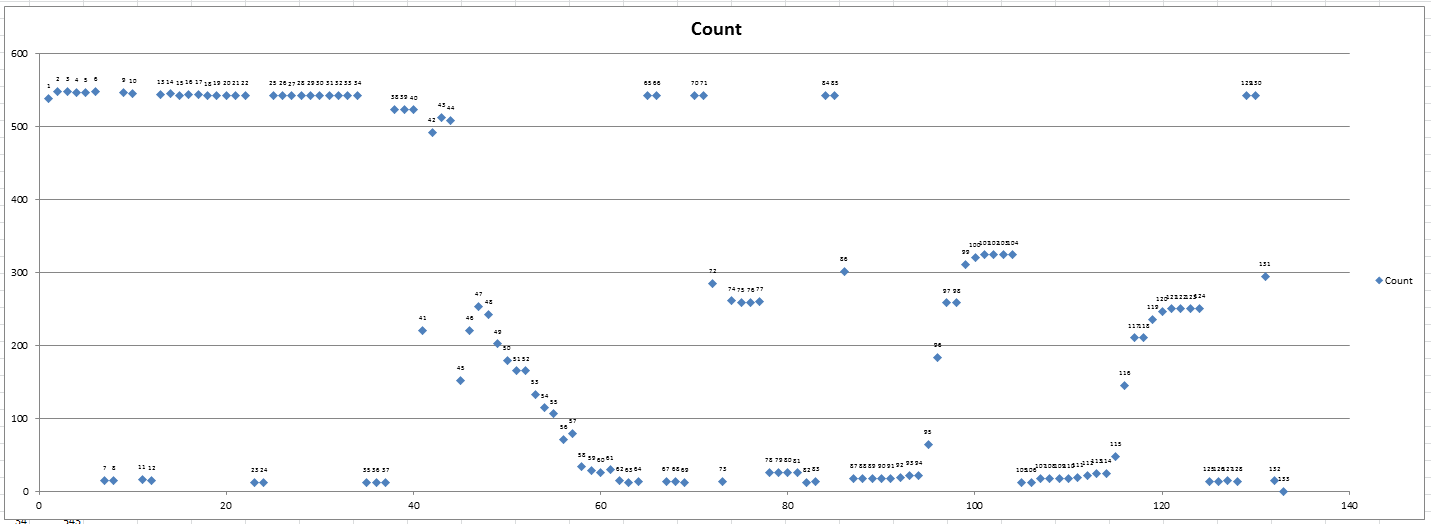
Let’s look at this sample file in terms of columns. In order to get all the numbers to show, this chart is kind of big.

I wrote a little macro to analyze the file and report how many characters are in each column.

Sub ReadTextFile()
   
    Dim sFile As String
    Dim lFile As Long
    Dim sInput As String
    Dim vaLines As Variant
    Dim i As Long, j As Long
    Dim aChars() As Long
    Dim bLow As Boolean
   
    sFile = "C:\Users\dkusleika\Dropbox\Excel\FixedWidthExample.txt"
    lFile = FreeFile
       
    Open sFile For Input As lFile
    sInput = Input$(LOF(lFile), lFile)
    Close lFile
   
    vaLines = Split(sInput, vbNewLine)
    ReDim aChars(1 To Len(vaLines(0)) + 1, 1 To 1)
   
    For i = LBound(vaLines) To UBound(vaLines)
        For j = 1 To Len(vaLines(i))
            If Mid$(vaLines(i), j, 1) <> Space$(1) Then
                aChars(j, 1) = aChars(j, 1) + 1
            End If
        Next j
    Next i
   
    Sheet1.Range("B2").Resize(UBound(aChars, 1), 1).Value = aChars
   
End Sub

Then I charted them. It seems pretty clear that there’s a break around 7, 12, 23, and 35. The points at 41 and 45 are a little less clear, but starting at 47, you see a clear downward trend. This is the tell-tale sign of left-justified text. Similarly, 87-104 is a right-justified number. The headers muddy up the waters a bit because they contain data that’s no good to me, but still adds to the character count. As I mentioned before, I’m not building a general-purpose solution and it just so happens I can remove the headers. So I did.

Sub ReadTextFileNoHeaders()
   
    Dim sFile As String
    Dim lFile As Long
    Dim sInput As String
    Dim vaLines As Variant
    Dim i As Long, j As Long
    Dim aChars() As Long
    Dim bHeader As Boolean
   
    sFile = "\\99991-dc01\99991\dkusleika\My Documents\FixedWidthExample.txt"
    lFile = FreeFile
       
    Open sFile For Input As lFile
    sInput = Input$(LOF(lFile), lFile)
    Close lFile
   
    vaLines = Split(sInput, vbNewLine)
    ReDim aChars(1 To Len(vaLines(0)) + 1, 1 To 1)
   
    For i = LBound(vaLines) To UBound(vaLines)
        If Len(vaLines(i)) > 0 Then
            If Asc(Left$(vaLines(i), 1)) = 12 Then
                bHeader = True
            ElseIf vaLines(i) = String(132, "-") Then
                bHeader = False
            End If
        End If
       
        If Not bHeader Then
            For j = 1 To Len(vaLines(i))
                If Mid$(vaLines(i), j, 1) <> Space$(1) Then
                    aChars(j, 1) = aChars(j, 1) + 1
                End If
            Next j
        End If
    Next i
   
    Sheet3.Range("B2").Resize(UBound(aChars, 1), 1).Value = aChars
   
End Sub

The ASCII code for the page break character is 12. All of my headers end in a string of 132 dashes. That’s damn convenient. Look what happens when I remove the headers.

Based on that, I think I could predict the column breaks perfectly. But there’s one aspect of this file that allows me to say that. I don’t have any truly variable length, left-justified text followed by any truly variable length, right-justified number. For instance, if the description column was immediately followed by the debit column, it might be difficult to determine exactly where to break it.

How did I solve that problem? I didn’t. This is as far as I got writing my own text import wizard. Out of nowhere, I read something about reading text files with ADO and all my problems were solved. I had used external data tables to read text files, but never ADO. I’ll post about how I’m importing text files with ADO in my next post.

Draw a circle in an Excel chart

By default, Excel has a limited number of charts. That does not mean that those are the only charts one can create. It turns out that with a little imagination and creativity, we can format and configure the default charts so that the effect is like many other kinds of charts.

One of the more versatile of charts is the XY Scatter chart. We can use it as the base for many data visualization tasks. Recently, for a client, I used one to create a radial org chart as in Figure 1. Such a chart is also called a Node-Link chart or a Reingold–Tilford Tree.

image001
Figure 1 – Example of a radial org graph created in an Excel XY Scatter chart
after removal of all identifiable information and the obfuscation of data
necessary to protect the client’s confidentiality.

A lot of “out of the box” work into making this chart. One key element was the set of equidistant concentric circles that provide a visual reference for the small colored dots. This note demonstrates how to create concentric circles in an Excel XY Scatter chart.

For a version in a page by itself (i.e., not in a scrollable iframe as below) visit http://www.tushar-mehta.com/publish_train/xl_vba_cases/0610%20draw%20circle.shtml

Tushar Mehta

Worksheet as a chart – multiple conditional formats

Several years back, I wrote an article on how to use multiple cells to simulate conditional formats that involved more than 3 conditions. Three versions of Excel later, I still receive requests related to this post. So, I updated it to include more screenshots and a downloadable file.

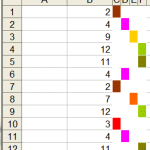
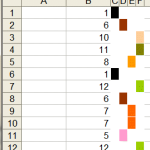
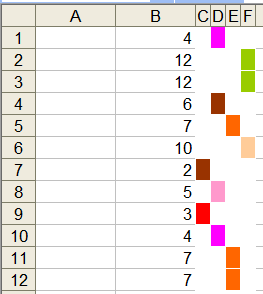
In Excel 2003 and earlier, conditional formatting works well for up to three conditions. But even when the number of conditions exceeds that limit, it is possible to do without any programming support. For example, one possible way to show twelve possible rankings through color is shown below.

img7img8img9

For more see http://www.tushar-mehta.com/excel/newsgroups/worksheet_as_chart/

Tushar Mehta

Sparkline Gauge

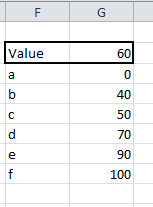
I have a list of labels and a list of values. I also have a value from somewhere in the range of my values list.

I want to show where the value falls in the list of values with a red mark. The labels need to be proportional to their values. An XY chart seemed like the obvious answer, but would require the XY Chart Label add-in or some better charting skills on my part. Also, there may be a few of these on a sheet, so I wanted to keep it more light-weight. Sparklines move nicely with cells, so I tried that route.

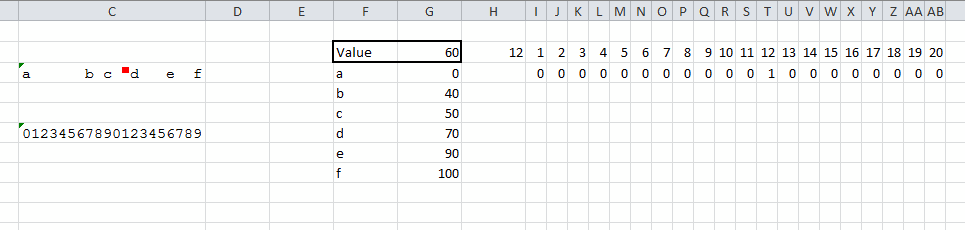
First, I needed to get the labels spread proportionally across a cell. I made the cell 20 characters wide by typing '00000000000000000000, setting the font to Courier New, and resizing the column. Cell C6 shows the positions. To get the proper spread of labels, I used a UDF, shown below.

Public Function PropAxis(rLabels As Range, rValues As Range) As String
   
    Dim vaLabels As Variant
    Dim vaValues As Variant
    Dim i As Long, j As Long
    Dim dSpan As Double
    Dim dIncrement As Double
    Dim lPosition As Long
    Dim aReturn(1 To 20) As String
   
    'Put ranges in an array
    vaLabels = rLabels.Value
    vaValues = rValues.Value
   
    'Find the span of the values range
    dSpan = vaValues(UBound(vaValues, 1), 1) - vaValues(LBound(vaValues, 1), 1)
   
    'initialize the array with spaces
    For i = LBound(aReturn) To UBound(aReturn)
        aReturn(i) = Space(1)
    Next i
   
    'put the first and last labels in the array
    aReturn(1) = vaLabels(1, 1)
    aReturn(UBound(aReturn)) = vaLabels(UBound(vaLabels, 1), 1)
   
    'Put the middle labels proportionally
    For i = LBound(vaLabels) + 1 To UBound(vaLabels) - 1
        dIncrement = (vaValues(i, 1) - vaValues(1, 1)) / dSpan
        dIncrement = dIncrement * (UBound(aReturn) - 1)
        lPosition = Round(dIncrement, 0)
       
        'If they're too close, just move one over
        If aReturn(lPosition) <> Space(1) And lPosition < UBound(aReturn) Then
            lPosition = lPosition + 1
        End If
       
        aReturn(lPosition) = vaLabels(i, 1)
    Next i
   
    PropAxis = Join(aReturn, vbNullString)
   
End Function

The values still have to be reasonably spread out or this will overwrite some of them. But it worked for my purposes. The formula =PropAxis(F3:F8,G3:G8) is in C3.

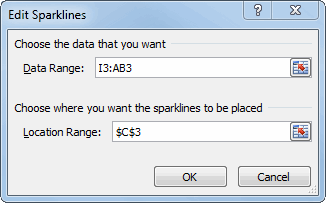
Next I set up the range I2:AB3 to feed the sparkline. Row 2 represents the 20 characters in the cell. Row three should be all zeros except one, which will be a 1. Then a win/loss sparkline will show the one ‘win’ as a mark.

In H2, I calculate which character gets the win. Here’s how that formula progressed:

=ROUND((G2-G3)/(G8-G3)*20,0)

That figures where the value is in the list of values as a percentage and multiplies by the number of characters in the cell (20). I wanted to protect against a value that was not in the range, so I modified it to this:

=MIN(MAX(ROUND((G2-G3)/(G8-G3)*20,0),1),20)

Now it will never be less than 1 or greater than 20. Because of rounding, the mark may be one character off of an exact match. That’s probably not a problem – it’s obviously not supposed to be hyper-accurate since I’m only using 20 characters – but it just doesn’t look right. So I handle exact matches as special cases.

=IF(ISNA(MATCH(G2,G3:G8,FALSE)),MIN(MAX(ROUND((G2-G3)/(G8-G3)*20,0),1),20),FIND(INDEX(F3:F8,MATCH(G2,G3:G8,FALSE),1),C3))

If there isn’t an exact match, find the percentage and get close. If it is an exact match, find the character’s position in the string and put the mark there. Now in Row 3 of my sparkline data range, I use this number to find the ‘win’.

=IF($H$2=I2,1,0)

I thought this whole process would be easier with sparklines. But it’s not really any more light-weight than just a chart. Anybody else want to take a crack at it?

You can download SparklineProportion.zip

Placing Chart Data Labels

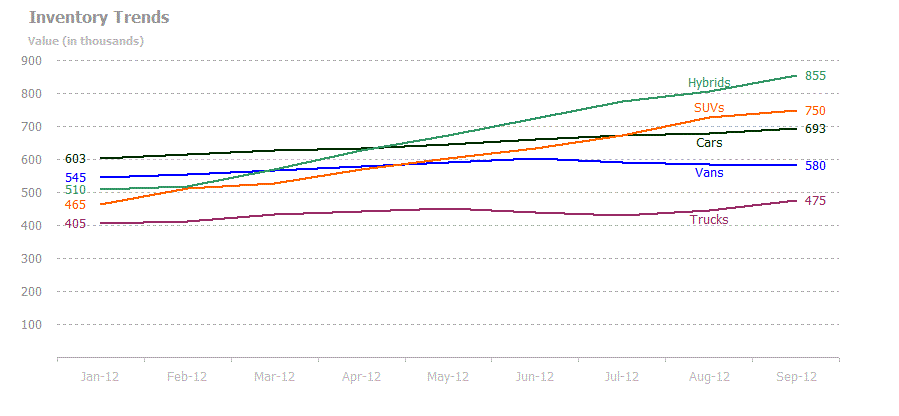
I made this chart in Excel 2003:

I used this data:

Vehicle 1/31/2012 2/29/2012 3/31/2012 4/30/2012 5/31/2012 6/30/2012 7/31/2012 8/31/2012 9/30/2012
Cars 603 615 627 634 646 659 672 679 693
Trucks 405 413 433 442 451 440 430 445 475
Vans 545 556 567 578 590 602 590 585 580
SUVs 465 512 527 570 604 634 672 726 750
Hybrids 510 519 571 628 672 725 775 805 855

Normally I would put the series name at the end of the line (because I like how it looks), but I wanted to include the starting and ending values too. So I decided to put the series name on the second to last data point. If all the labels are at the top or bottom, it looks terrible because they run into other lines. I needed to put the label above or below the line based on how much space was available. That was harder than I thought it would be.

I ended up looping through the collection a lot: once to store the values at position 8, another couple times to sort, and yet another time to apply the labels. I started with some of Peltier’s code and modified for my needs.

Public Sub LabelInventoryChart()
   
    Dim cht As Chart
    Dim srsType As Series
    Dim aPoints() As Double
    Dim i As Long, j As Long
    Dim lTempSrs As Long, dTempVal As Long
   
    Const lLBLOFFSET As Long = 7 'how far away the label is from the line
    Const lPNTOFFSET As Long = 1 'which data point to put the series name on (from right)
   
    'Get the chart and dim an array to hold the values at the
    'data point
    Set cht = wshInventory.ChartObjects(1).Chart
    ReDim aPoints(1 To cht.SeriesCollection.Count, 1 To 2)
   
    'Loop through the series and fill an array with the data point
    'values
    For Each srsType In cht.SeriesCollection
        With srsType
            If .Points.Count > lPNTOFFSET Then
                aPoints(srsType.PlotOrder, 1) = srsType.PlotOrder
                aPoints(srsType.PlotOrder, 2) = srsType.Values(.Points.Count - lPNTOFFSET)
            End If
        End With
    Next srsType
   
    'Sort the array on the values - descending
    For i = LBound(aPoints, 1) To UBound(aPoints, 1) - 1
        For j = i To UBound(aPoints, 1)
            If aPoints(i, 2) < aPoints(j, 2) Then
                lTempSrs = aPoints(i, 1)
                dTempVal = aPoints(i, 2)
                aPoints(i, 1) = aPoints(j, 1)
                aPoints(i, 2) = aPoints(j, 2)
                aPoints(j, 1) = lTempSrs
                aPoints(j, 2) = dTempVal
            End If
        Next j
    Next i
   
    'Loop through the series and show data labels
    For i = LBound(aPoints, 1) To UBound(aPoints, 1)
        Set srsType = cht.SeriesCollection.Item(aPoints(i, 1))
        With srsType
            If .Points.Count > lPNTOFFSET Then
                With .Points(.Points.Count - lPNTOFFSET)
                   
                    'Create a value label, change the text to the series name, and
                    'change the color to match the line
                    .ApplyDataLabels xlDataLabelsShowValue, False, True
                    .DataLabel.Text = srsType.Name
                    .DataLabel.Font.Color = srsType.Border.Color
                   
                    'The data label for the top line goes on top
                    If i = LBound(aPoints, 1) Then
                        .DataLabel.Position = xlLabelPositionAbove
                        .DataLabel.Top = .DataLabel.Top + lLBLOFFSET
                       
                    'The data label for the lowest line goes on the bottom
                    ElseIf i = UBound(aPoints, 1) Then
                        .DataLabel.Position = xlLabelPositionBelow
                        .DataLabel.Top = .DataLabel.Top - lLBLOFFSET
                    Else
                        'Figure out if above or below has more space and put the
                        'data label where there's the most room
                        If Abs(aPoints(i, 2) - aPoints(i - 1, 2)) < Abs(aPoints(i, 2) - aPoints(i + 1, 2)) Then
                            .DataLabel.Position = xlLabelPositionBelow
                            .DataLabel.Top = .DataLabel.Top - lLBLOFFSET
                        Else
                            .DataLabel.Position = xlLabelPositionAbove
                            .DataLabel.Top = .DataLabel.Top + lLBLOFFSET
                        End If
                    End If
                End With
            End If
           
            'Show data labels for starting and ending data
            With .Points(1)
                .ApplyDataLabels xlDataLabelsShowValue, False, True
                .DataLabel.Position = xlLabelPositionLeft
                .DataLabel.Font.Color = srsType.Border.Color
            End With
            With .Points(.Points.Count)
                .ApplyDataLabels xlDataLabelsShowValue, False, True
                .DataLabel.Position = xlLabelPositionRight
                .DataLabel.Font.Color = srsType.Border.Color
            End With
        End With
    Next i
   
End Sub

The lines diverge toward the end, so using the 8th data point turned out good. If they converged, it wouldn’t really matter whether there was more space on the top or bottom, they would still run into each other. In that case I would change lPNTOFFSET to a more appropriate place.

Handicap History Chart

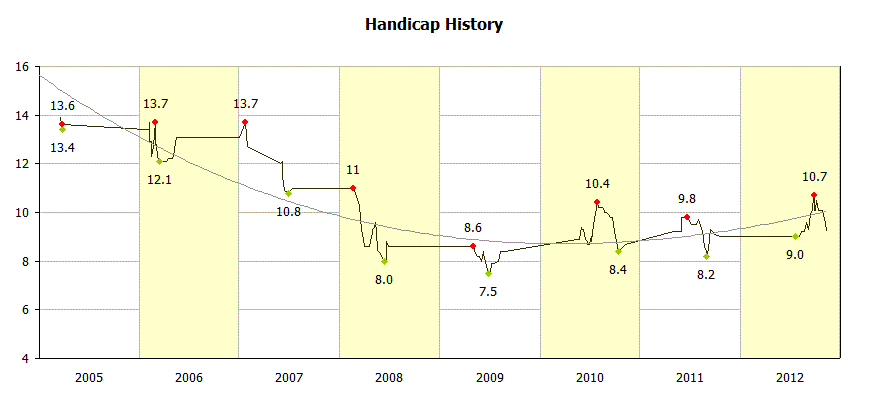
I was thinking about yesterday’s handicap history chart and it was bothering me. I should have cleaned up the x-axis and shaded the years. So I did.

I made two new columns:

Q7: =(MOD(YEAR(P7),2))
R7: =YEAR(P7)

I added a new data series using those columns and:

  • Move the new data series to a secondary axis
  • Changed the chart type for that series to a column chart
  • Change the fill to pale yellow and the border to 25% gray
  • Change the gap width to zero
  • Set the secondary y-axis scale to 0-1 and removed the labels
  • Removed the tick marks and data labels for the primary x-axis
  • Removed the tick marks for the secondary x-axis
  • Move the data labels from the secondary x-axis to Low

Handicap History

Back in 2005, I created a spreadsheet to calculate my USGA handicap and I’ve been using it ever since (175 scores posted). It calculates my current handicap but doesn’t give me any historical information. Until now.

GHIN calculates handicaps on a schedule, not in real time. That means many of the handicaps on my spreadsheet aren’t official. They do that so that one score doesn’t swing the calculation too much. By calculating approximately monthly, they give you a chance to post a few scores between calculations. Here’s what my spreadsheet looks like today:

The formulas up to column J are the same as they were in 2005. I’ve added formulas in K through O.

K181: =SUMPRODUCT(((H162:H181+(ROW(H162:H181)/100000))<=SMALL(H162:H181+(ROW(H162:H181)/100000),10))*(H162:H181))

The part that says +(ROW(H162:H181)/100000) is used to add a small number so that I can break ties but won’t affect the score. Otherwise it’s summing up the 10 smallest of the last 20. I started 20 rows down so I wouldn’t have to mess with less than 20 scores. That’s too much work for not enough payoff.

L181: =SUMPRODUCT(--((H162:H181+(ROW(H162:H181)/100000))<=SMALL(H162:H181+(ROW(H162:H181)/100000),10)))

I don’t know why I wrote this one – it’s always 10. Except that sometimes it was 11 before I added the +ROW stuff to break ties. It’s principally the same formula as the previous one except for the last part. And it includes the double-negation to coerce the Trues and Falses into numbers.

M181: =TRUNC(K181/L181*0.96,1)

Divide one by t’other and take 96%.

N181: =IF((M181+(ROW(M181)/100000))=MIN(IF(((YEAR($D$27:$D$181)=YEAR(D181))*($M$27:$M$181))=0,"",($M$27:$M$181+(ROW($M$27:$M$181)/100000)))),M181,NA())
O181: =IF((M181+(ROW(M181)/100000))=MAX((YEAR($D$27:$D$181)=YEAR(D181))*(($M$27:$M$181+(ROW($M$27:$M$181)/100000)))),M181,NA())

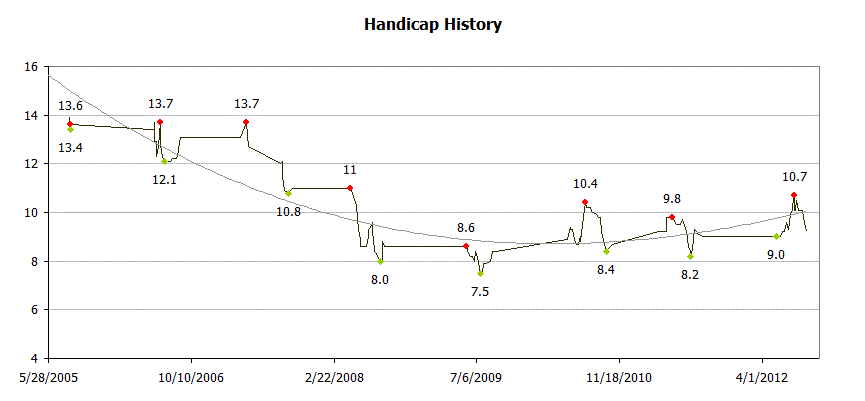
Once I got that part done, the data was begging to be graphed. Once on a chart, I could see that I needed some Min’s and Max’s to clutter it up. These last two formulas compute the minimum and maximum indexes by year and return that value on the row where it exists. If it doesn’t exist on a particular row, it returns NA() so it doesn’t show up on the chart.

To make the chart, I selected all the data from D:O and created an XY chart. Then I deleted all the series that I didn’t want. Sorry for the 2003isness of the chart. Some of the steps I took to create this chart are:

  • CumIndex: Remove markers, make Olive Green line, add Polynomial2 trendline
  • Trendline: Make 25% grey
  • Major Gridlines: Make 25% grey
  • Min: Remove lines, make makers green, make data labels = Y values, put data labels on bottom
  • Max: Remove lines, make makers red, make data labels = Y values, put data labels on top
  • Y axis: Make minimum of 4 and maximum of 16 to get rid of some white space
  • X axis: Adjust min and max to tighten it up
  • Plot area: Remove fill

Oh, how I pine for the days of a 7.5 handicap index. The season in Nebraska ends November 15, so I have a little more than two months to get that down. I’d like to get it down to, at most, an 8.0 by then.

You can download Handicap2.zip

Excel Services Interactive View

Analyze data with Excel on the web

Microsoft has introduced a new web based capability that extends its Excel Services offering.  This new capability provides a limited interactive view of any table in a web page.

An introduction to this service is below.  For those interested in additional capabilities and more advanced and useful capabilities see:

For the consumer:

Learn more about Interactive View

Analyze a table in any web page with a dynamic interactive view

For the developer:

Implement the Interactive View feature for 1 table

Implement the Interactive View feature for multiple tables

Improve the formatting and layout of the 'Interactive View' buttons

As an example, the image below shows a table, the Interactive View button, and the result.

For a live demo, developer tips, and more, please see http://www.tushar-mehta.com/publish_train/data_visualization/15c%20interactiveview/index.htm

Tushar Mehta

Use an Excel chart to show a time snapshot and trace a path

These Excel charts were inspired by Hans Rosling’s TED presentation on Religion and Babies (http://www.ted.com/talks/hans_rosling_religions_and_babies.html). He is absolutely great at engaging the viewer with his ability to bring data to life.

One of the things he did in his presentation was show the equivalent of an Excel bubble chart. He showed how different countries measured over the years. He also created a trail showing how a country progressed over time.

I decided to do the same with an Excel bubble chart – and implement both capabilities, i.e., the time snapshot and the time trail tracing the path, without any VBA code! The example I used was data from one of a series of seminars I had taught to healthcare executives. They participated, in teams, in a real-time, interactive, web-based simulation. In the simulation each team made decisions about how much of their limited resources to invest in (1) product development and operations and (2) marketing and sales. Their profitability depended both on their own decision and also their competitors. The simulation typically lasted 10 to 12 periods. The scroll bar in each chart controls the period shown or the latest period, as appropriate. The checkboxes control which teams have their performance history traced in the chart.

While I implemented the solution in Excel 2010, it should work in Excel 2007 and Excel 2003, though, in all fairness, I haven’t verified the older versions.

For a version in a page by itself (i.e., not in a scrollable iframe as below) visit http://www.tushar-mehta.com/publish_train/data_visualization/9e%20Bubble%20Chart%20by%20Period.shtml

Tushar Mehta

Copy Chart as a Picture

I needed to copy a chart to a picture, but I wanted it to be an enhanced metafile (EMF) which is kind of like a vector graphic picture format. EMF graphics scale well when the page resizes.

A user would select the chart, run the macro and a dialog would ask them where to save the picture to – pretty simple, but handy!
It uses the clipboard to do the conversion.

Declare Function OpenClipboard Lib "user32" (ByVal hwnd As Long) As Long
Declare Function CloseClipboard Lib "user32" () As Long
Declare Function GetClipboardData Lib "user32" (ByVal wFormat As Long) As Long
Declare Function EmptyClipboard Lib "user32" () As Long
Declare Function CopyEnhMetaFileA Lib "gdi32" (ByVal hENHSrc As Long, ByVal lpszFile As String) As Long
Declare Function DeleteEnhMetaFile Lib "gdi32" (ByVal hemf As Long) As Long
 
Const CF_ENHMETAFILE As Long = 14
Const cInitialFilename = "Picture1.emf"
Const cFileFilter = "Enhanced Windows Metafile (*.emf), *.emf"
 
Public Sub SaveAsEMF()
    Dim var As Variant, lng As Long
 
    var = Application.GetSaveAsFilename(cInitialFilename, cFileFilter)
    If VarType(var) <> vbBoolean Then
        On Error Resume Next
        Selection.Copy
 
        OpenClipboard 0
        lng = GetClipboardData(CF_ENHMETAFILE)
        lng = CopyEnhMetaFileA(lng, var)
        EmptyClipboard
        CloseClipboard
        DeleteEnhMetaFile lng
        On Error GoTo 0
    End If
End Sub