Author Archive

VBE Code Indenter for the Macintosh

I lived in two worlds. My work was done on a PC, but my home computer has been a Mac since the Mac Plus. One thing my work PC had that my Mac never did was a code indenter for prettifying macro code. I’m partial to Stephen Bullen’s “Smart Indenter,” but others exist, such as Andrew Engwirda’s, found over here. Neither one works on a Mac because the Mac doesn’t have the same innards in the editing environment. “Never did” was until a free snowy weekend, when I wrote one in AppleScript. AppleScript exists on any Mac, and this script will indent any VBA routine. It uses a stack (implemented as an AppleScript list.) For an indent you push the stack, and for an out-dent you pop the stack. Two of the trigger phrases are more complicated. Else (and Else If) need an out-dent followed by an indent, or a pop and a push. Case requires an indent for the first one, an out-dent and an indent for the following ones, and then since End Select closes out Case, two out-dents, or two pops.

There’s probably a way to get to the editor’s native elements, but I couldn’t find it. I scripted the GUI instead. Here’s the script. AppleScript is about as self-documenting as it gets.

set TabSize to 3 -- spaces per tab.  Adjust to suit
set AlignDimAsToTabs to true -- Adjust to suit
set PutDimAsAtTab to 7 -- Adjust to suit
set OldCode to ""
set NewCode to ""
set templine to ""
set Tabs to 0
set Stack to {1}
set CaseStack to {}
set ThisLine to {}
set NoTabs to {"Option Explicit", "Sub", "Private", "Public", "Function", "Type", "Enum", "End Sub", "End Function"}
set OneTab to {"Dim", "ReDim", "Static", "Stop", "Debug", "#If", "#Else", "#End"}
set PushTabs to {"For", "With", "Do", "Select", "Case"}
set IfTabs to {"If", "Else", "End If"} --Push, Pop & Push, Pop
set PopTabs to {"Next", "End With", "Loop", "End Select"}
set the clipboard to OldCode
tell application "System Events"
    tell application id "com.microsoft.Excel" to activate
    tell application process "Microsoft Excel" --scripting the GUI
        set myList to (get name of windows)
        repeat with i from 1 to count of myList
            try
                if last word of item i of myList is "Code" then
                    exit repeat
                end if
            end try
        end repeat
        perform action "AXRaise" of window i
    end tell
    keystroke "a" using command down
    delay 1
    keystroke "c" using command down
    delay 1
    --if nothing happens, make sure your code window is frontmost.
end tell
set OldCode to the clipboard
set C to count of paragraphs of OldCode
set AppleScript's text item delimiters to space
repeat with N from 1 to C
    try
        set WasFound to false
        set LineOfCode to paragraph N of OldCode
        if length of LineOfCode > 1 then
            repeat while character 1 of LineOfCode is space
                if length of LineOfCode = 1 then exit repeat
                set LineOfCode to text 2 thru -1 of LineOfCode
            end repeat
            repeat with i from 1 to (count of characters of LineOfCode) - 1
                set char1 to character i of LineOfCode
                set char2 to character (i + 1) of LineOfCode
                if not (char1 is space and char2 is space) then
                    set templine to templine & char1
                end if
            end repeat
            set templine to templine & char2
            set LineOfCode to templine
            set templine to ""
                        set char2 to ""
        end if
        set L1 to length of LineOfCode
        if L1 > 1 then
            repeat with i from 1 to count of NoTabs
                set ItemText to item i of NoTabs
                set L2 to length of ItemText
                if L1 ≥ L2 then
                    if ItemText = text 1 thru L2 of LineOfCode then
                        set WasFound to true
                        exit repeat
                    end if
                end if
            end repeat
            if WasFound is false then
                repeat with i from 1 to count of OneTab
                    set ItemText to item i of OneTab
                    set L2 to length of ItemText
                    if L1 ≥ L2 then
                        if ItemText = text 1 thru L2 of LineOfCode then
                            if AlignDimAsToTabs is true and (ItemText = "Dim" or ItemText = "Static") and ¬
                                                                LineOfCode does not contain "(" then
                                set j to 1
                                repeat with i from 1 to count of characters of LineOfCode
                                    if character i of LineOfCode is space then
                                        set ThisLine to ThisLine & text j thru (i - 1) of LineOfCode
                                        set j to i + 1
                                    end if
                                end repeat
                                set ThisLine to ThisLine & text j thru i of LineOfCode
                                set x to (length of ItemText) + (length of item 2 of ThisLine) + 2
                                set y to TabSize * (PutDimAsAtTab - 1) --take one away, add it back below
                                set txt to "As"
                                repeat with i from 1 to (y - x)
                                    set txt to space & txt
                                end repeat
                                set item 3 of ThisLine to txt
                                set LineOfCode to ThisLine as string
                                set ThisLine to {}
                            end if
                            set Tabs to 1
                            set LineOfCode to pad_the_line(LineOfCode, TabSize * Tabs) --add it back
                            set WasFound to true
                            exit repeat
                        end if
                    end if
                end repeat
            end if
            if WasFound is false then
                repeat with i from 1 to count of PushTabs
                    set ItemText to item i of PushTabs
                    if ItemText = first word of LineOfCode then
                        set Tabs to last item of Stack
                        if ItemText = "Select" then set CaseStack to CaseStack & (false) --push the stack
                        if ItemText = "Case" then
                            if last item of CaseStack is true then set Stack to pop_the_stack(Stack)
                            if last item of CaseStack is false then set the last item of CaseStack to true
                        end if
                        set Tabs to last item of Stack
                        set LineOfCode to pad_the_line(LineOfCode, TabSize * Tabs)
                        set Stack to Stack & (Tabs + 1) --push the stack
                        set WasFound to true
                        exit repeat
                    end if
                end repeat
            end if
            if WasFound is false then
                repeat with i from 1 to count of IfTabs
                    set ItemText to item i of IfTabs
                    set L2 to length of ItemText
                    if L1 ≥ L2 then
                        if (ItemText = text 1 thru L2 of LineOfCode) and (last word of LineOfCode is not "Then") and (last character of LineOfCode is not "_") and (ItemText = "If") then --If...
                            set Tabs to last item of Stack
                            set LineOfCode to pad_the_line(LineOfCode, TabSize * Tabs)
                            set WasFound to true
                            exit repeat
                        else if (ItemText = text 1 thru L2 of LineOfCode) and (ItemText = "Else") then --Else, Else If
                            set Stack to pop_the_stack(Stack)
                            set Tabs to last item of Stack
                            set LineOfCode to pad_the_line(LineOfCode, TabSize * Tabs)
                            set Stack to Stack & (Tabs + 1) --push the stack
                            set WasFound to true
                            exit repeat
                        else if (ItemText = text 1 thru L2 of LineOfCode) and (last word of LineOfCode = "Then") then --If...Then
                            set Tabs to last item of Stack
                            set LineOfCode to pad_the_line(LineOfCode, TabSize * Tabs)
                            set Stack to Stack & (Tabs + 1) --push the stack
                            set WasFound to true
                            exit repeat
                        else if (ItemText = text 1 thru L2 of LineOfCode) and (last character of LineOfCode = "_") then --If..._
                            set Tabs to last item of Stack
                            set LineOfCode to pad_the_line(LineOfCode, TabSize * Tabs)
                            set Stack to Stack & (Tabs + 1) --push the stack
                            set WasFound to true
                            exit repeat
                           
                        else if ItemText = text 1 thru L2 of LineOfCode then --End If
                            set Stack to pop_the_stack(Stack)
                            set Tabs to last item of Stack
                            set LineOfCode to pad_the_line(LineOfCode, TabSize * Tabs)
                            set WasFound to true
                            exit repeat
                        end if
                    end if
                end repeat
            end if
            if WasFound is false then
                repeat with i from 1 to count of PopTabs
                    set ItemText to item i of PopTabs
                    set L2 to length of ItemText
                    if L1 ≥ L2 then
                        if ItemText = text 1 thru L2 of LineOfCode then
                            if ItemText = "End Select" then
                                set CaseStack to pop_the_stack(CaseStack)
                                set Stack to pop_the_stack(Stack)
                            end if
                            set Stack to pop_the_stack(Stack)
                            set Tabs to last item of Stack
                            set LineOfCode to pad_the_line(LineOfCode, TabSize * Tabs)
                            set WasFound to true
                            exit repeat
                        end if
                    end if
                end repeat
            end if
            if WasFound is false then
                set Tabs to last item of Stack
                set LineOfCode to pad_the_line(LineOfCode, TabSize * Tabs)
            end if
        end if
        set NewCode to NewCode & LineOfCode & return
    on error error_message number error_number
        if error_number is -1728 then
            --Can’t get last item of {}.
            set alert_string to "Extra Code Block End" as string
            set AppleScript's text item delimiters to " or "
            set message_string to ¬
                ("There looks to be an extra code block end line of either \n{" & PopTabs as string) & ¬
                " or End If}\nin your code, as the Stack is empty {}. Ending. Your code is not changed."
            display alert alert_string message message_string as warning buttons {"OK"}
            set AppleScript's text item delimiters to ""
            return
        end if
    end try
end repeat

set the clipboard to ""
delay 0.5
set the clipboard to NewCode
tell application "System Events"
    tell application id "com.microsoft.Excel" to activate
    keystroke "v" using command down
end tell
if last item of Stack is not 1 then
    set alert_string to "Extra Code Block Start"
    set AppleScript's text item delimiters to " or "
    set message_string to ¬
        ("There looks to be an extra code block start line of either \n{" & PushTabs as string) & ¬
        " or If}\nin your code, as the Stack did not return to {1}."
    display alert alert_string message message_string buttons {"OK"} ¬
        giving up after 10
end if
set AppleScript's text item delimiters to ""

on pop_the_stack(this_list)
    set this_list to reverse of this_list
    set this_list to rest of this_list
    set this_list to reverse of this_list
    return this_list
end pop_the_stack

on pad_the_line(ThisLine, pad)
    repeat with j from 1 to pad
        set ThisLine to space & ThisLine
    end repeat
    repeat while last character of ThisLine is space
        set ThisLine to text 1 thru -2 of ThisLine
    end repeat
    return ThisLine
end pad_the_line

The script checks for two things: If the stack at the end is not {1}, then you have too many indents. AppleScript won’t complain, and the editor probably showed you it to you any way. On the other hand, if you have too many out-dents, you can’t pop an empty stack, and Applescript throws an error. The script above catches that, and makes no changes.

Stephen Bullen provides some sample code. I stole it, and added some of my own.

Option Explicit

'Example Procedure
Sub ExampleProc()

'Smart Indenter
'(c) 1998-2004 by Office Automation ltd.

Dim iCount As Integer
Static sName As String

If YouWantMoreExamplesAndTools Then
'Visit http://www.oaltd.co.uk

Select Case X
Case "A"
'If you have any comments or suggestions, _
or find valid VBA code that isn't indented correctly,

#If VBA6 Then
MsgBox "Please comment below."
#End If

Case "Continued strings and parameters can be" _
& "lined up for easier reading, optionally ignoring" _
, "any operators (&+, etc) at the start of the line."
'Not implemented in Applescript.

Debug.Print "X<>1"
End Select ' Case X
End If 'More Tools?
End Sub

Sub Proc()
Dim mrt As Double
Select Case Row
Case 1
Select Case Col
Case 1
action 1
Case 2
action 2
End Select
Case 2
Select Case Col
Case 1
action 3
Case 2
action 4
End Select
Case Else
action 5
End Select
End Sub

Running the script, it looks like this:

Option Explicit

   'Example Procedure
Sub ExampleProc()

   'Smart Indenter
   '(c) 1998-2004 by Office Automation ltd.

   Dim iCount        As Integer
   Static sName      As String

   If YouWantMoreExamplesAndTools Then
      'Visit http://www.oaltd.co.uk

      Select Case X
         Case "A"
            'If you have any comments or suggestions, _
            or find valid VBA code that isn't indented correctly,

   #If VBA6 Then
            MsgBox "Please comment below."
   #End If

         Case "Continued strings and parameters can be" _
            & "lined up for easier reading, optionally ignoring" _
            , "any operators (&+, etc) at the start of the line."
            'Not implemented in Applescript.

   Debug.Print "X<>1"
      End Select ' Case X
   End If 'More Tools?
End Sub

Sub Proc()
   Dim mrt           As Double
   Select Case Row
      Case 1
         Select Case Col
            Case 1
               action 1
            Case 2
               action 2
         End Select
      Case 2
         Select Case Col
            Case 1
               action 3
            Case 2
               action 4
         End Select
      Case Else
         action 5
   End Select
End Sub

I didn’t implement Stephen’s procedure/module/project choice, as I don’t think I can. The whole module page is prettified. And I didn’t reverse engineer his control of comments. Line comments go as the next line of code would be indented, and inline comments are as you put them. This script, suitably and easily modified, will work for MS Word macros, too. I tried to find the hooks that would ensure a code module was the front window in the editor, but I had no luck. If nothing happens, you may have the Project or Properties windows frontmost, and Select All and Copy are grayed out. Just click in your module, and you’ll be all set. If you want to change the category of a trigger phrase, it’s straight forward. You’ll have to pay attention to if the phrase is one word or two. If it’s two, you have to compare as text vice as words. Examples are in the script. And please, if you know the inner mechanisms of AppleScript and the VB Editor, leave a note.

…mrt
©¿©¬
Using the “short date”, “medium date” and “long date” formats

I came across a line of code that formatted a date in VBA like this: Format(aDate,”short date”). And I didn’t get it. So with a little investigation, it turns out that “short date” (and “medium date” and “long date”) relate to the specified system methods of expressing dates found in the regional settings. So I wrote this little bit of code:

Sub testit()
   Dim aDate As Date
   aDate = Date
   Debug.Print Format(aDate, "short date")
   Debug.Print Format(aDate, "medium date")
   Debug.Print Format(aDate, "long date")
End Sub

This is what I got:
06/05/2012
5-Jun-12
Tuesday, June 5, 2012

On both my XP box and my Mac, except that on the Mac, “long date” maps to Full. Trouble is, on neither machine do I have a “medium” setting, or a setting that maps to “medium date”. So. it looks like “medium date” is XL internal.

I’m not sure what great good these choices do. It would appear to be full proof to just specify the format. This capability does not extend to the spreadsheet TEXT() function.

Here’s a page that covers it: http://www.techonthenet.com/excel/formulas/format_date.php
You can also do the same with Time.

…mrt
©¿©¬

Excel and LinkedIn Groups

As I write, there are 1,055 LinkedIn groups with the keyword Excel. Not all of them are about software. Some exist to “support members to learn, grow, and excel.” So, I refined the search to include groups only in English. There are still 939 of those, but with some still learning, growing, and excelling. Moving then to Excel, English, and networking, there are 243 (and the learners are not yet gone). Using Excel, English, and Professional Group, it’s 409 groups, no learners, but also not the largest Excel group, either. Making it Microsoft Excel limits the list down to a mere 41.

Of the 939, the largest is Microsoft Excel Users with 16,677 members, and the smallest is the MS Pivot Table Discussion Group with a mere 8.

Which of these groups are worth writing about? I’m in Daniel Ferry’s Excel Hero group, but it’s listed three pages in, just approaching 2000 members. Dick is, too. What groups are you in, and why?

…mrt
©¿©¬

Noughts and Crosses

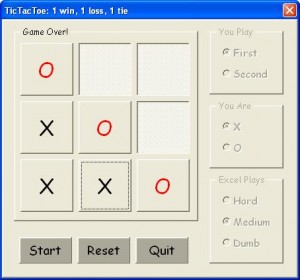
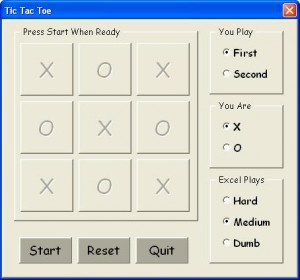
Last month I read an article about a job interviewer who played TicTacToe with his applicants. It was like an instant shared round of golf, and the interviewer put great store in the correlation of good hires with good players. So in case any DDoE readers might run into that guy, here is TicTacToe (or Noughts and Crosses as it’s known across the pond) in a user form suitable for practice.


There are several XL versions out there in the wide world of web (though not too many in a user form) and this is just the latest. It’s a refresh of my first XL code that wasn’t a tutorial, written in XLM too many moons ago.

You can set if you go first or second, set if you are X or O, and set if XL plays hard (don’t know if it can be beat), medium (can be beat), or dumb (as in very dumb—makes random legal moves). It’ll keep score. If you play well, you can’t lose. If XL plays well, you can’t win.


Start refreshes the game, and Reset takes you back to where you can adjust the mode of play. It looks different, but it works fine on a Mac with XL 2011. Its default is the Comic Sans MS font. If you’re playing second, you can control the start square for XL by clicking Start until XL randomly picks the square you want it to use.

The form is available here. After importing, it needs just a one-line macro to run.

Sub TicTacToe()
   frmTicTacToe.Show
End Sub

Presumably, that guy giving the interview plays TicTacToe well, so you won’t win. I don’t think you want to lose, either. Or maybe just lose one out of three. I think I read about it on the BBC’s iPad service. If you remember where it was, please comment. And if you beat it with XL playing hard, please say how. Your game is captured in the VBE’s Immediate Window.

Provided as a public service to Dick’s readers. :roll:

…mrt
©¿©¬

Getting a Font List to a Combo Box

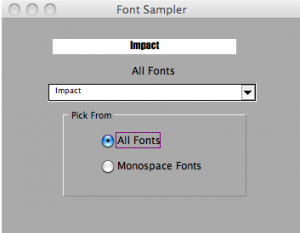
The other day a reader asked about how to get a font list to a combo box so his users could have a choice to specify. Borrowing shamelessly from John Walkenbach’s Tip 79, this is one way to do it. I use this approach when I take a spreadsheet to a web table and want to specify the font.

Font Sampler Image

From top to bottom, the form has:

  • A label, named lblFontcboOverLabel
  • A label, named lblFontcbo
  • A combo box, named cboFontOther
  • A frame, named Frame1
  • An option button, named btnAllFonts
  • An option button, named btnMonoFonts

This is the code behind the form:

Option Explicit
Private Fface As String, FaceNdx As Long
Private InstalledFonts As String

Public Property Get FontFace() As String
   FontFace = FFace
End Property

Private Sub btnMonoFonts_Click()
   Call AddFontBox(1)
   Me.lblFontcbo = "Monospace Fonts"
End Sub

Private Sub btnAllFonts_Click()
   Dim i       As Long
   Dim TempFonts As Variant

   Me.cboFontOther.Clear

   TempFonts = Split(InstalledFonts, ",")
   For i = LBound(TempFonts) To UBound(TempFonts)
      Me.cboFontOther.AddItem TempFonts(i)
   Next i
   Me.cboFontOther.Text = "Comic Sans MS"
   Me.lblFontcbo = "All Fonts"
End Sub

Private Sub cboFontOther_Change()
   Me.lblFontcboOverLabel = Me.cboFontOther.Text
   Me.lblFontcboOverLabel.Font = Me.cboFontOther.Text
   Me.lblFontcboOverLabel.Font.Size = 12
   Fface = Me.cboFontOther.Text
End Sub

Private Sub UserForm_Initialize()
   Dim FontList As CommandBarControl
   Dim Tempbar As CommandBar, i As Long
   'http://www.j-walk.com/ss/excel/tips/tip79.htm
   
   Set FontList = Application.CommandBars("Formatting").FindControl(Id:=1728)
   If FontList Is Nothing Then
      Set Tempbar = Application.CommandBars.Add
      Set FontList = Tempbar.Controls.Add(Id:=1728)
   End If
   Me.cboFontOther.Clear

   For i = 1 To FontList.ListCount
      If Left$(FontList.List(i), 1) Like "[A-Za-z0-9]" Then
         Me.cboFontOther.AddItem FontList.List(i)
         InstalledFonts = InstalledFonts & FontList.List(i)
         If i <> FontList.ListCount Then InstalledFonts = InstalledFonts & ","
      End If
   Next i
   Me.lblFontcbo = "All Fonts"

   Me.cboFontOther.Text = "Impact"

   On Error Resume Next
   Tempbar.Delete
End Sub

Private Sub AddFontBox(i As Long)
   Dim MonoFont As Variant
   'etc
   
   Dim TempFont As Variant, TempStr As String, Str1 As String, Str2 As String

   MonoFont = "Monaco,Courier New,Courier,Lucida Sans Typewriter," & _
              "Lucida Console,Nimbus Mono L,DejaVu Sans Mono,Andale Mono," & _
              "Liberation Mono,Consolas,Courier 10 Pitch,FreeMono," & _
              "Menlo Bold,Menlo Bold Italic,Menlo Italic,Menlo Regular," & _
              "OCR A Extended,Tlwg Typist,TlwgMono,TlwgTypewriter," & _
              "Tlwg Typo,Bitstream Vera Sans Mono"
             
   Select Case i
      Case 1: TempFont = Split(MonoFont, ",")
      'etc
    End Select

   Me.cboFontOther.Clear

   For i = LBound(TempFont) To UBound(TempFont)
      Str1 = TempFont(i) & ","
      Str2 = "," & TempFont(i)
      If InStr(1, InstalledFonts, Str1, vbTextCompare) Or _
         InStr(1, InstalledFonts, Str2, vbTextCompare) Then
         TempStr = TempStr & TempFont(i)
         If i <> UBound(TempFont) Then TempStr = TempStr & ","
      End If
   Next i
   TempFont = Split(TempStr, ",")

   For i = LBound(TempFont) To UBound(TempFont)
      Me.cboFontOther.AddItem TempFont(i)
   Next i

   Me.cboFontOther.Text = TempFont(0)
End Sub

It has the “Get Property” at the top. I screen the installed fonts to filter the Asian fonts from my list. Remove the “Like” operator if you need them. I capture the the installed fonts as a global string variable in a comma-delimited list. The list of monospaced fonts came from here, and represents the fonts installed as a minimum on ⅓ of all Windows, Mac, and Unix computers. They’re listed in percentage order irrespective of machine and not by installation count.

As I use the full form, the Over Label lies atop the combo box. But if you want to see more than the font’s name in its own font, modify the combo box change to something like this:

Private Sub cboFontOther_Change()
   Me.lblFontcboOverLabel = "Jackdaws love my big sphinx of quartz."
   Me.lblFontcboOverLabel.Font = Me.cboFontOther.Text
   Me.lblFontcboOverLabel.Font.Size = 12
   Fface = Me.cboFontOther.Text
End Sub

…mrt
©¿©¬

A Suite of XL Color Functions, Part 3

HEXADECIMAL and XL color values are equivalent systems for representing RGB colors, but they start at different ends. In XL, pure red–RGB(255,0,0)–is 25510. In HEX, pure red–FF000–is 1671168010. XL has red as the least significant digits, HEX has it as the most significant digits. But we’re using computers, so this version of endianness is a manageable problem.

To go from XL representation to web-friendly HEX, turn the XL color to HEX, pad it with leading zeroes, and then swap the end pairs. Green stays in the middle. Red, 25510, becomes FF, then 0000FF, and then FF0000. This is the XL2HEX() function.

Function XL2HEX(xlclr As Long, Optional Prefix As String) As String
   Dim Temp    As String
   Temp = Hex(xlclr)
   If Len(Temp) < 6 Then Temp = String(6 - Len(Temp), "0") & Temp
   XL2HEX = Prefix & Right$(Temp, 2) & Mid$(Temp, 3, 2) & Left$(Temp, 2)
End Function

It includes an optional prefix. Usual ones are # for web colors, and &H or &h to indicate a hexadecimal number. There are many more. You can pass the VB color constants to XL2HEX():

?xl2hex(vbwhite,”#”) ?xl2hex(vbred,”#”) ?xl2hex(vbgreen,”#”) ?xl2hex(vbblue,”#”)
#FFFFFF #FF0000 #00FF00 #0000FF
?xl2hex(vbyellow,”#”) ?xl2hex(vbcyan,”#”) ?xl2hex(vbmagenta,”#”) ?xl2hex(vbblack,”#”)
#FFFF00 #00FFFF #FF00FF #000000

The flip function needs to strip off the prefix, make sure it’s six characters long, read the red, green, and blue, and then create the XL color. Since CSS allows #ABC to represent #AABBCC we’ll special case it.

Function HEX2XL(hexclr As String) As Long
   Dim i       As Long
   Dim Red As Long, Green As Long, Blue As Long
   Dim Temp    As String

   Temp = CheckCSS(hexclr)
   
   Red = CLng("&h" & Left$(Temp, 2))
   Green = CLng("&h" & Mid$(Temp, 3, 2))
   Blue = CLng("&h" & Right$(Temp, 2))

   HEX2XL = RGB(Red, Green, Blue)
End Function

Function CheckCSS(hexclr As String) As String
   Dim Temp As String, i As Long
   If Len(hexclr) = 4 And Left$(hexclr, 1) = "#" Then
      For i = 2 To 4
         Temp = Temp & Mid$(hexclr, i, 1) & Mid$(hexclr, i, 1)
      Next i
   Else
      For i = 1 To Len(hexclr)
         If Mid$(hexclr, i, 1) Like "[A-Fa-f0-9]" Then Temp = Temp & Mid$(hexclr, i, 1)
      Next i
      If Len(Temp) < 6 Then Temp = String(6 - Len(Temp), "0") & Temp
   End If
   
   CheckCSS = Temp
End Function

The CLng() conversion turns hex into longs as part of its business. The HEX-to-color functions are more of the same.

Function HEX2RED(hexclr As String) As Long
   Dim i       As Long
   Dim Temp    As String

   Temp = CheckCSS(hexclr)

   HEX2RED = CLng("&h" & Left$(Temp, 2))
End Function

Function HEX2GRN(hexclr As String) As Long
   Dim i       As Long
   Dim Temp    As String

   Temp = CheckCSS(hexclr)

   HEX2GRN = CLng("&h" & Mid$(Temp, 3, 2))
End Function

Function HEX2BLU(hexclr As String) As Long
   Dim i       As Long
   Dim Temp    As String

   Temp = CheckCSS(hexclr)

   HEX2BLU = CLng("&h" & Right$(Temp, 2))
End Function

Function HEX2RGB(hexclr As String) As Variant
   Dim i       As Long, Red As Long, Green As Long, Blue As Long
   Dim Temp    As String

   Temp = CheckCSS(hexclr)

   Red = CLng("&h" & Left$(Temp, 2))
   Green = CLng("&h" & Mid$(Temp, 3, 2))
   Blue = CLng("&h" & Right$(Temp, 2))
   
   HEX2RGB = Array(Red, Green, Blue)
End Function

The HEX2RGB() function is array-entered. The function I use the most is XL2HEX(). I pass it cell or font color properties, such as FontColor = XL2HEX(.Color)

Thus ends the XL Color Functions. The picture at the top? It’s hexclr’d.

… mrt
©¿©¬

A Suite of XL Color Functions, Part 2

CMYK color modelWhen you go to replenish your ink cartridges, you don’t come home with a Red/Green/Blue gizmo. You come home with a Cyan/Magenta/Yellow/Black multi-pack whose cost is about the same as your printer. (It’s the razor and blades business model.) Your computer (input device) works in RGB; your printer (output device) works in CMYK. The RGB color vectors are zero to 255, the CMYK vectors are zero to 100. But it’s not that simple (more on this at the end). It’s like converting Fahrenheit to Celsius and only being able to use integer degrees. The -40° equivalent commonality point for colors is zero. The image is a representation of the CMYK color space.

A Code Project page referenced from Wikipedia gives the generic algorithm:

  • Black = minimum(1-Red,1-Green,1-Blue)
  • Cyan = (1-Red-Black)/(1-Black)
  • Magenta = (1-Green-Black)/(1-Black)
  • Yellow = (1-Blue-Black)/(1-Black)

Red, Blue, and Green are normalized to 0.0 to 1.0 (divide by 255) and the output then is scaled (multiply by 100). This is the XL2CMYK() function.

Function XL2CMYK(xlclr As Long) As Variant
   Dim Red As Double, Green As Double, Blue As Double
   Dim Cyan As Double, Magenta As Double, Yellow As Double, Black As Double
   
   Red = XL2RED(xlclr) / 255 'normalizing
    Green = XL2GRN(xlclr) / 255
   Blue = XL2BLU(xlclr) / 255
   
   Black = Application.WorksheetFunction.Min(1 - Red, 1 - Green, 1 - Blue)
   Cyan = Round(100 * (1 - Red - Black) / (1 - Black), 0) 'scaling then rounding
    Magenta = Round(100 * (1 - Green - Black) / (1 - Black), 0)
   Yellow = Round(100 * (1 - Blue - Black) / (1 - Black), 0)
   Black = Round(100 * Black, 0)
   
   XL2CMYK = Array(Cyan, Magenta, Yellow, Black)
End Function

With the RGB shown on the linked page {171,215,170}–an apple green, the xlclr is 11196331. The CMYK out is {20,0,21,16}, irritatingly different than what is shown in the Code Project page’s image, but what in fact does happen when you run the downloadable file.

The flip function CMYK2XL() is this:

Function CMYK2XL(Rng As Range) As Long
   Dim Cyan As Double, Magenta As Double, Yellow As Double, Black As Double
   Dim Red As Double, Green As Double, Blue As Double
   
   Cyan = Rng.Cells(1, 1) / 100 'normalizing
    Magenta = Rng.Cells(1, 2) / 100
   Yellow = Rng.Cells(1, 3) / 100
   Black = Rng.Cells(1, 4) / 100
   
   Red = (1 - Cyan) * (1 - Black)
   Green = (1 - Magenta) * (1 - Black)
   Blue = (1 - Yellow) * (1 - Black)
   
   Red = Round(255 * Red, 0) 'scaling then rounding
    Green = Round(255 * Green, 0)
   Blue = Round(255 * Blue, 0)
   
   CMYK2XL = RGB(Red, Green, Blue)
End Function

When input {20,0,21,16} the output is 11130539. Tilt. It’s because of the rounding and aligning to integers. This is what it looks like:

11196331⟹     ⟸11130539

Close enough for now. I can’t see a difference, but these eyes have some miles on them, and are behind plastic to boot. But there are differences. Wikimedia Commons gets almost the last word.

A comparison of RGB and CMYK color spaces. … If you were to print the image on a CMYK device (an offset press or maybe even a ink jet printer) the two sides would likely look much more similar, since the combination of cyan, yellow, magenta and black cannot reproduce the range (gamut) of color that a computer monitor displays. This is a constant issue for those who work in print production. Clients produce bright and colorful images on their computers and are disappointed to see them look muted in print. (An exception is photo processing. In photo processing, like snapshots or 8×10 glossies, most of the RGB gamut is reproduced.)

The code above is a device-independent solution to a device-dependent problem. Your printer will vary. But passing your work through it and back will give you an idea of what the printed product will look like, before it’s printed.

Next up, Part 3: XL2HEX() and HEX2XL()

…mrt
©¿©¬

A Suite of XL Color Functions, Part 1

RGB Color Cube
Your monitor was sold to you as being able to display more than 16 million colors. How many, exactly? 2563 or 16,777,216. One color for every combination possible of reds, greens, and blues in the range of 0 to 255 each. (Of course, unless you have 2563 pixels, you can’t see all those colors at once.) The image is of the RGB color cube, 255x255x255, with black at the origin, diagonally opposite the white corner. Excel keeps track of its colors as a long integer, the same as returned by the VBA.RGB(Red, Green, Blue) function.

RGB(1,0,0) is 1, RGB(0,1,0) is 256, and RBG(0,0,1) is 65536.
RGB(2,0,0) is 2, RGB(0,2,0) is 512, and RGB(0,0,2) is 131072.
RGB(3,3,3) is 3*1 + 3*256 + 3*65536, or 197379.

To go backwards, we can get the blue component of Excel’s colors by:

Function XL2BLU(xlclr As Long) As Long
   XL2BLU = xlclr \ 65536
End Function

or INT(xlclr/65536) in a spreadsheet. The green component is doing integer division on the remainder by 256.

Function XL2GRN(xlclr As Long) As Long
   XL2GRN = (xlclr - XL2BLU(xlclr) * 65536) \ 256
End Function

Red is what’s left after subtracting Blue and Green (a whole new meaning to subtractive colors):

Function XL2RED(xlclr As Long) As Long
   XL2RED = xlclr - XL2BLU(xlclr) * 65536 - XL2GRN(xlclr) * 256
End Function

To go from the XL color to RGB in one line:

Function XL2RGB(xlclr As Long) As Variant
   XL2RGB = Array(XL2RED(xlclr), XL2GRN(xlclr), XL2BLU(xlclr))
End Function

XL2RGB() must be array-entered across 3 cells. That version does compute XL2BLU 3 times and XL2GRN twice, but the calculations are quick ;) In even quicker form, it’s like this:

Function XL2RGB(xlclr as long) as Variant
   Dim Red as Long, Green as Long, Blue as Long
   
   Blue = xlclr\65536
   Green = (xlclr - Blue*65536)\256
   Red = xlclr - Blue* 65536 - Green*256
   
   XL2RGB = Array(Red,Green,Blue)
End Function

The flip function, RGB2XL is this:

Function RGB2XL(Rng As Range) As Long
   Dim Red As Long, Green As Long, Blue As Long
   Red = Rng.Cells(1, 1)
   Green = Rng.Cells(1, 2)
   Blue = Rng.Cells(1, 3)
   RGB2XL = RGB(Red, Green, Blue)
End Function

And as it must, xlclr = RGB2XL(XL2RGB(xlclr))

Up next, Part 2: XL2CMYK() and CMYK2XL() where the identity will only be “close enough.”

… mrt
©¿©¬

Making a Wiki Table

Writing for Wikipedia is a bit like writing in your third language—you know there are words for it, but your guides are from your second language—Wiki pour Les Nuls or maybe Wiki para Maniquíes. It’s a different dialect of HTML. Having done it for several years, Wikipedia’s goal seems to be a reduction in keystrokes to be saved on its servers. For example, to italicize, rather than using the i- or em- tags, you use paired apostrophes (not double-quotes) to lead and close, saving at least three key strokes. To embolden, you use three apostrophes to lead and close, saving at least one stroke over the b- or strong- tags. And bold italics is thus five apostrophes leading, five apostrophes closing, saving at least four strokes. An unordered list’s members are just lines started with an asterisk, and an ordered list’s members are lines started with a pound sign. This economy follows into Wiki tables, where pipes (“|”) and curly braces (“{}”)are used for all the tags. There is a good summary of the table markup differences here. This little table:

1 2
3 4

 
In Wiki is this:

{|
| 1 || 2
|-
| 3 || 4
|}

as opposed to this:

<table>
 <tr>
 <td>1</td><td>2</td>
 </tr>
 <tr>
 <td>3</td><td>4</td>
 </tr>
</table>

If you have a table like this is in your spreadsheet:

Sports Teams    
  Boston New York
Baseball Boston Red Sox New York Yankees<br />New York Mets
Football New England Patriots New York Giants<br />New York Jets
Basketball Boston Celtics New York Knicks<br />New York Nets
Hockey Boston Bruins New York Rangers<br />New York Islanders

 
The MakeWikiTable() macro will make a table like this for Wikipedia:

Sports Teams
  Boston New York
Baseball Boston Red Sox New York Yankees
New York Mets
Football New England Patriots New York Giants
New York Jets
Basketball Boston Celtics New York Knicks
New York Nets
Hockey Boston Bruins New York Rangers
New York Islanders

And this table G33:H38

  G H I J K
32 Testing Sorting        
33 Coins Value      
34 Pennies 0.01<font color=white>[-]</font>   0.01 <font color=white>[-]</font>
35 Nickels 0.05<font color=white>[-]</font>   0.05 <font color=white>[-]</font>
36 Dimes 0.10<font color=white>[-]</font>   0.1 <font color=white>[-]</font>
37 Quarters 0.25<ref name=two>Two bits</ref>   0.25 <ref name=two>Two bits</ref>
38 Halves 0.50<ref name=four>Four bits</ref>   0.5 <ref name=four>Four bits</ref>

 
where H34: = Text(J34, "0.00") & K34 is aligned right and filled down, looks like this:

Testing Sorting
Coins Value
Pennies 0.01[-]
Nickels 0.05[-]
Dimes 0.10[-]
Quarters 0.25[1]
Halves 0.50[2]

Tapping into the class = “wikitable”, MakeWikiTable() can make any combination of sortable, collapsible, and collapsed tables. It invokes the class if the upper left table cell is not empty, and thus your (literally) first column is data vice row headers. There is a longstanding bug in the wikitable class that disables sorting if there is too much adornment given the table, no matter if the table is set as “sortable” or not. The combinations look like this in Wikipedia:

Only
Sorting
With Sorting
Collapsible
With Sorting
Collapsed
No Sorting
Collapsible
No Sorting
Collapsed
Coins Coins [hide] Coins [show] Coins [hide] Coins [show]

All these examples are available here. You’ll see the footnotes you created in Excel are at the bottom of the Wiki page. It looks different at Wiki Commons, but the code still works. Examples of a tables I made there with MakeWikiTable() are these. You’ll see it uses a sideways arrow instead of text for hide and show.

This is the MakeWikiTable code:

Public Sub MakeWikiTable()
   Const DQ    As String * 1 = """"   'double double double-quotes
    Dim DataObj As New MSForms.DataObject
   'Check VBE Tools/References Microsoft Forms 2.0 Object Library
    Dim Rng     As Range
   Dim Cell    As Range
   Dim sReturn As String
   Dim TextAlign As String
   Dim CellContents As String
   Dim UseRowHeaders As Boolean
   Dim R As Long, C As Long
   Dim IsSortable As Long, IsCollapsible As Long, IsCollapsed As Long
   Dim Caption   As String
   Dim BgColor As String, FontColor As String

   Set Rng = Selection
   R = Rng.Rows.Count
   C = Rng.Columns.Count
   
   Caption = Rng.Cells(1, 1).Offset(-1, 0).Text   'Don't start the table in Row(1)
    If Len(Rng.Cells(1.1)) = 0 Then
      UseRowHeaders = True
      IsSortable = vbNo
   Else
      IsSortable = MsgBox("Use Sortable Headers for your " & R & "-row by " & C & "-column table?", _
                          vbYesNoCancel + vbQuestion, "MRT's Wiki Table Maker")
      If IsSortable = vbCancel Then Exit Sub
      IsCollapsible = MsgBox("Do you want your table to collapse?", _
                          vbYesNoCancel + vbQuestion + vbDefaultButton1, "MRT's Wiki Table Maker")
      If IsCollapsible = vbCancel Then Exit Sub
      If IsCollapsible = vbYes Then
         IsCollapsed = MsgBox("Do you want your table to load as collapsed?", _
                          vbYesNoCancel + vbQuestion + vbDefaultButton1, "MRT's Wiki Table Maker")
         If IsCollapsed = vbCancel Then Exit Sub
      End If
   End If
   
   If IsSortable = vbYes Or IsCollapsible = vbYes Then
      sReturn = "{|class=" & DQ & "wikitable" & IIf(IsSortable = vbYes, " sortable", "") & _
            IIf(IsCollapsible = vbYes, " collapsible", "") & _
            IIf(IsCollapsed = vbYes, " collapsed", "") & DQ & _
            " style=" & DQ & "margin: 1em auto 1em auto;" & DQ & vbNewLine
   Else
      sReturn = "{|border=" & DQ & "1" & DQ & " cellpadding=" & DQ & "5" & DQ & " cellspacing=" & DQ _
             & "0" & DQ & " style=" & DQ & "margin: 1em auto 1em auto;" & DQ & vbNewLine
   End If
   sReturn = sReturn & "|+'''" & Caption & "'''" & vbNewLine
   sReturn = sReturn & "|-<!--Header-->" & vbNewLine
   
   For Each Cell In Rng.Rows(1).Cells
      CellContents = Cell.Text
      If Len(CellContents) = 0 Then
         CellContents = "&nbsp;"
      Else
         CellContents = Application.WorksheetFunction.Trim(CellContents)
      End If
      BgColor = HexColor(Cell.Interior.Color)
      FontColor = HexColor(Cell.Font.Color)
      sReturn = sReturn & "!scope=" & DQ & "col" & DQ & " style=" & DQ & "background-color:" & _
         BgColor & "; color:" & FontColor & ";" & DQ & "| " & _
         CellContents & vbNewLine
   Next Cell

   For R = 2 To Rng.Rows.Count
      sReturn = sReturn & "|-<!--Row " & R - 1 & "-->" & vbNewLine
      For C = 1 To Rng.Columns.Count

         Set Cell = Rng.Cells(R, C)
         CellContents = Cell.Text
         If Len(CellContents) = 0 Then CellContents = "&nbsp;"

         CellContents = MakeFracs(CellContents)
         CellContents = Application.WorksheetFunction.Trim(CellContents)
         CellContents = VBA.Replace(CellContents, "0 / 0", "zero / zero", 1, 1, vbTextCompare)

         If C = 1 And UseRowHeaders Then
            BgColor = HexColor(Cell.Interior.Color)
            FontColor = HexColor(Cell.Font.Color)
            sReturn = sReturn & "!scope=" & DQ & "row" & DQ & " style=" & DQ & "background-color:" & _
                  BgColor & "; color:" & FontColor & ";" & DQ & "| " & _
                  CellContents & vbNewLine
         Else
            Select Case Cell.HorizontalAlignment
               Case xlGeneral
                  TextAlign = "left"
                  If IsNumeric(Cell.Value) Then TextAlign = "right"
                  If IsError(Cell.Value) Then TextAlign = "center"
               Case xlLeft
                  TextAlign = "left"
               Case xlCenter
                  TextAlign = "center"
               Case xlRight
                  TextAlign = "right"
               Case xlJustify
                  TextAlign = "center"
            End Select
           
            sReturn = sReturn & "|align=" & TextAlign & "| "
            With Cell.Font
               If .Italic Then sReturn = sReturn & "''"
               If .Bold Then sReturn = sReturn & "'''"
            End With

            sReturn = sReturn & CellContents

            With Cell.Font
               If .Bold Then sReturn = sReturn & "'''"
               If .Italic Then sReturn = sReturn & "''"
            End With
           
            sReturn = sReturn & vbNewLine
         End If
      Next C
   Next R
   
   sReturn = sReturn & IIf(IsSortable = vbYes, "|-class=sortbottom" & vbNewLine, "")
   sReturn = sReturn & "|}" & vbNewLine
   
   DataObj.SetText sReturn
   DataObj.PutInClipboard

End Sub

Function HexColor(Color As Long) As String
   Dim Red As String, Green As String, Blue As String
   Red = VBA.Hex(Color And 255)
   Green = VBA.Hex(Color \ 256 And 255)
   Blue = VBA.Hex(Color \ 256 ^ 2 And 255)
   If Len(Red) = 1 Then Red = "0" & Red
   If Len(Green) = 1 Then Green = "0" & Green
   If Len(Blue) = 1 Then Blue = "0" & Blue
   HexColor = "#" & Red & Green & Blue
End Function

Note that the Caption is at Offset(1,0) from the your selected table. Wikipedia’s examples all use muted grays for the headers. The first two of the following are the provided colors, the third, aka “silver” is what I used above.

#EFEFEF #CFCFCF #C0C0C0

The macro should be invoked from a form instead of daisy-chained message boxes. I got lazy. The MakeFracs() function is here. If you want to put something in the upper-left cell, and still get row headers, put it in after you paste your table into Wikipedia.

… mrt
©¿©¬

Turning an Excel table into CSS

This is my very ugly, very formatted, table to test my translation skills, first into HTML and now into CSS. Every cell has at least two formats that have a counterpart in CSS, and the table runs through all options at some point.

Ugly Table

 
Row(5) has nine different fonts, at assorted alignments, from left to right:

  • Courier New
  • Time New Roman
  • Verdana
  • Comic Sans MS
  • Georgia
  • Tahoma
  • Trebuchet MS
  • Arial Black
  • Impact

I think Microsoft Office puts those fonts on every machine. A1:H5 are the colors of the old/original color pallate. This is my CSS rendering of the double-ugly table.

  A B C D E F G H I
1 1 2 3 4 5 6 7 8 9
2 2 4 6 8 10 12 14 16 18
3 3 #N/A 9 12 15 18 21 24 27
4 4 8.00E+00 12 16 20 24 28.000 32 36
5 The quick brown fox jumps over the lazy dog!
6 6 12 18 24 30 36 42 48  
7 7 14 21 28 35 42 49 56 63
8 8 16 24 32 40 48 56 64 72
9 9 18 27 36 45 54 63 72 81
10 10 20 ⅞ 30 40 50 60 70 80 90
11                  

 
Tricks were required to capture conditional formatting, which is not contained in a cell’s styling. From here, Chip Pearson showed me the way. The mental picture I formed was of conditional formatting floating in a horizontal plane above the spreadsheet, hiding the “regular” formatting below it. Reverse engineering the way cell formats interact with conditional formats was not fun, but the result should be near to what you see in your spreadsheet. Several cells in Row(7) are conditionally formatted. Browsers can screw this up. The bottom border of E10 is a dotted red line. It’s set as xlHairline in the spreadsheet. The HTML properly specifies it as a dotted red line, and outside of WordPress, that’s what I see. Just not here. Similarly, I’ve specified the column widths and their max-widths. WordPress doesn’t seem to care, and spreads the table 100%. My impression is that inline styles win, but not always on WordPress, I guess.

The graphic is about 70KB and the table about 57KB. While the graphic will be always be around 70KB, the table will shrink as formatting is lessened. For the 120 cells above, which includes the heading cells, that’s about 486 bytes per cell. To speed the concatenation up, I implemented (the late) Nate Oliver’s buffer concept, with a buffer for 106 characters, or room for over 2,000 excessively formatted cells.

The MakeCSSTable() procedure looks at the selected cells from left to right, top to bottom, and aligns each cell’s attributes with CSS. Except for the optional case of not capturing the headers, only the bottom and right borders are captured (the left and top being captured from a previous cell). When no-headers are chosen, all four borders are captured for the top row and left column. Someone please speakup if it’s documented what the layout or z-order for Excel’s cells is, and how their borders overlay. I think I got close to right, but since the browsers may do it differently, I’m not sure. If you change your gridline settings, MakeCSSTable() follows along.

My initial approach gave a CSS style for each attribute on each edge. As I got smarter, I grouped the the attributes into shortcuts. Not every Excel attribute has a CSS counterpart. For instance, diagonal borders do not exist in CSS, CSS only offers one kind of underlining, CSS3 adds an outline font but browsers don’t handle it yet (see Cell(D6)—it’s in the macro though for when they do), and Excel has more dashed/dotted line styles than CSS. Predominately dashed styles align to a “dashed” CSS style, with a similar arrangement for dotted lines. Things I stumbled upon in doing this: Column widths are a pixel measurement (based on the Normal-style font size) and row heights are a point measurement. For small Excel font sizes (<11) I specified a CSS use of a value of “small” in one line’s code. Since this is outside what Excel calculated, it can throw the column widths off. You can see the difference in the G5 cells.

This little table:

  A B
17 1 2000
18 3000 4
19 5 38 ⅞

 
Looks like this underneath:

<table padding=10 style="border-style:none; table-layout:fixed; border-collapse:collapse;">
<tr><!--Header-->
<th style="background:LightGray; -moz-border-radius-topleft:15px; border-top-left-radius:15px; width:2em; border-left:none; border-top:none; border-right:solid 1px Gray; border-bottom:solid 1px Gray;">&nbsp;</th>
<th style="background:LightGray; font:normal large 'Lucida Console', Calibri, Arial, sans-serif; text-align:center; width:77px; max-width:77px; color:DimGray; border-left:none; border-top:none; border-right:solid 1px Gray; border-bottom:solid 1px Gray;">A</th>
<th style="background:LightGray; font:normal large 'Lucida Console', Calibri, Arial, sans-serif; text-align:center; width:125px; max-width:125px; color:DimGray; border-left:none; border-top:none; border-right:solid 1px Gray; border-bottom:solid 1px Gray;">B</th>
</tr>
<tr><!--Row 1-->
<th style="background:LightGray; font:normal medium 'Lucida Console', Calibri, Arial, sans-serif; text-align:center; height:14pt; color:DimGray; border-left:none; border-top:none; border-right:solid 1px Gray; border-bottom:solid 1px Gray;">17</th>
<td style="background:#DD0806; text-align:right; color:#000000; font:small 'Arial'; vertical-align:top; font:small 'Arial'; border-right:solid 1px #DD0806; border-bottom:solid 1px #DD0806;">1</td>
<td style="background:#339966; text-align:center; color:#000000; font:small 'Arial'; vertical-align:top; font:small 'Arial'; border-right:solid 1px #339966; border-bottom:solid 1px #339966;">2000</td>
</tr>
<tr><!--Row 2-->
<th style="background:LightGray; font:normal medium 'Lucida Console', Calibri, Arial, sans-serif; text-align:center; height:15pt; color:DimGray; border-left:none; border-top:none; border-right:solid 1px Gray; border-bottom:solid 1px Gray;">18</th>
<td style="background:#3366FF; text-align:right; color:#FFFFFF; font:small 'Arial'; vertical-align:top; font:small 'Arial'; border-right:solid 1px #3366FF; border-bottom:solid 1px #3366FF;">3000</td>
<td style="background:#FFFF99; text-align:center; color:#DD0806; font:small 'Arial'; vertical-align:top; font:small 'Arial'; border-right:solid 1px #FFFF99; border-bottom:solid 1px #FFFF99;">4</td>
</tr>
<tr><!--Row 3-->
<th style="background:LightGray; font:normal medium 'Lucida Console', Calibri, Arial, sans-serif; text-align:center; height:30.75pt; color:DimGray; border-left:none; border-top:none; border-right:solid 1px Gray; border-bottom:solid 1px Gray;">19</th>
<td style="background:#FFFF99; text-align:left; color:#FF9900; font:bold small 'Arial'; vertical-align:bottom; font:bold small 'Arial'; border-right:solid 1px #FFFF99; border-bottom:solid medium #000000;">5</td>
<td style="background:#CC99FF; text-align:right; color:#339966; font:20pt 'Arial'; vertical-align:top; font:20pt 'Arial'; border-right:solid medium #000000; border-bottom:solid medium #000000;">38 &#8542;</td>
</tr>
</table>

 
The CSS_Tablemaker module is 700+ lines of code, including the whitespace, so it’s available here as a spreadsheet file. It comes complete with the MakeCSSTable(), AddToBuffer(), MakeFracs(), and HexColor() routines, and as much of Chip’s code as I used. The absolutely stunning tables above are included, no charge. The header details are module constants you can adjust. The output is dumped to the clipboard to paste where you want.

 
… mrt
©¿©¬