Archive for the ‘Uncategorized’ Category.

Date Picker Add-in for Excel

Hi all

Post Updated : 28-April-2013

I upload a Date Picker add-in based on John Walkenbach’s Date Picker on my site for the Mac and Windows.

This Date Picker have local Day letters in the header and also local Date formats in the format dropdown and have a option to use 3 week number systems(also ISO weeks).

Windows version :

http://www.rondebruin.nl/win/addins/datepicker.htm

Mac version :

http://www.rondebruin.nl/mac/addins/datepicker.htm

Have a nice day

Almost There

Look how close I am. It’s like the odometer rolling over on my car.

RIP Live Mesh, hello Cubby

Recently, I have had to make changes to my “computing infrastructure.” This is one of them.

blog-Picture1
blog-Live_Mesh_Logo
blog-Cubby-Logo


For the longest time I synchronized files between my laptop and desktop with the help of a flash drive.

Then, I discovered Groove but it didn’t really fit the bill and I don’t remember why.

It was on to FolderShare at about the same time that it became a free product. And, it worked wonderfully.

What was really neat about it was that it synced folders peer-to-peer. The files were not on a server and if both computers were on the same LAN, they didn’t even touch the ‘Net!

Microsoft acquired it and it still worked. It became Live Sync and I dreaded each new version but luckily it continued to work. Though, I noticed there were serious lags in file sync. From what I could tell — and I could be wrong — the server played a critical role in deciding which files needed syncing and that introduced a bottleneck. Live Sync became Windows Live Mesh and at some point it included a cloud-based sync capability, which I never used.

This peer-to-peer sync model fit in very well when I got married and my wife delegated all “computer support” to me. So, I extended Live Sync to her computers, duplicated her files on my computer and and included her files in my backups.

Earlier this year, in Feb. 2013, Microsoft discontinued Live Sync, which by now was named Live Mesh. In researching alternatives, I narrowed the field to GoodSync and Cubby, the only two that supported peer-to-peer sync. GoodSync was priced per computer: $30/Windows and $40/Mac; Cubby works on a subscription: $84/year. Given the proliferation of devices, Cubby made more sense.

The interesting thing about Cubby is that it has a free version that includes 5GB of cloud storage but no peer-to-peer capability. Upgrade to Pro (that’s the $84/year subscription), and it includes 100GB of cloud storage. Of course, with the peer-to-peer DirectSync, I don’t care about the expanded cloud storage. Cubby has other features that I haven’t explored yet including customer specified encryption keys.

Amazon Regular Expression

Regular expressions are powerful and powerfully frustrating. Frustrating? I don’t use them enough to be able to think in regular expression. So I search the internet for someone who’s solved my exact problem and I copy their solution. When that doesn’t work, it’s very frustrating. One problem is that there are different variants of RE. I, of course, am using the VB Script 5.5 version, which I understand is almost identical to the Javascript variant.

I want to match an Amazon product link. I start with the RE from this stackoverflow answer.

http://www.amazon.com/([\\w-]+/)?(dp|dp/product|gp/product|exec/obidos/asin)/(\\w+/)?(\\w{10})

It didn’t work. So I started by pasting it into MyEZApp’s Analyzer to get the English equivalent. You still have to know something about RE, but it’s helpful when trying to read someone else’s pattern. Using that and this basic reference and this advanced reference, I started to convert the above pattern into one that will work with VB Script 5.5. I ended up with

http://www\.amazon\.com/([\w\-]+/)?(?:dp|dp/product|gp/product|exec/obidos/asin)/(?:\w+/)?(\w{10})

Not too different than where I started. But it seems to work, which is key. Here’s how it breaks down.


http://www\.amazon\.com/([\w\-]+/)?(?:dp|dp/product|gp/product|exec/obidos/asin)/(?:\w+/)?(\w{10})

Match those 10 characters exactly.


http://www\.amazon\.com/([\w\-]+/)?(?:dp|dp/product|gp/product|exec/obidos/asin)/(?:\w+/)?(\w{10})

Match a period exactly. The backslash is called an escape character. A period normally means to match any character except a line break. I don’t want that meaning, I want to match a period, so I have to escape it.


http://www\.amazon\.com/([\w\-]+/)?(?:dp|dp/product|gp/product|exec/obidos/asin)/(?:\w+/)?(\w{10})

More exact matching. The forward slash after the .com is also an exact match. As far as I know, the front slash has no special meaning.


http://www\.amazon\.com/(...)?(?:dp|dp/product|gp/product|exec/obidos/asin)/(?:\w+/)?(\w{10})

Parentheses create a group. It’s kind of like an order or precedence thing. Sometimes you want to perform an operation on a regular expression taken as a whole. Most commonly, you see groups with decisions. Because the pipe, the decision operator, is such a low precedent, you generally need to create a group.

Diet|Crystal Pepsi will match Diet or Crystal Pepsi

whereas

(Diet|Crystal) Pepsi will match Diet Pepsi or Crystal Pepsi

When’s the last time you saw a Crystal Pepsi reference? Grouping has another important characteristic. It saves the part of the string that matched for later use. In some Amazon links, this portion of the link represents a description of the product. I’m using the group, so that I can extract that portion of the string and use it elsewhere, as you’ll see later.


http://www\.amazon\.com/(...)?(?:dp|dp/product|gp/product|exec/obidos/asin)/(?:\w+/)?(\w{10})

A question mark makes the preceding item optional. Another reason I’m using a group, in addition to saving the value for later use, is because I want to apply the optional flag to the whole group. In some Amazon links, there is no product description. When it’s not there, it’s not a problem, the grouping is optional. If it is there, it saves it.


http://www\.amazon\.com/([\w\-]+/)?(?:dp|dp/product|gp/product|exec/obidos/asin)/(?:\w+/)?(\w{10})

Square brackets enclose a character set. In a character set, you can specify characters, ranges of characters, and a whole bunch of other stuff. In this character set, I’ve used a shorthand character class (\w) for “word characters”. Word characters are letters, digits, and underscores. I’ve also included a minus sign – escaped with a backslash because a minus sign inside a character set indicates a range, like A-Z and I don’t want that special meaning. I want to include minus signs explicitly. The highlighted portion above will match exactly one character, digit, underscore, or hyphen.


http://www\.amazon\.com/([\w\-]+/)?(?:dp|dp/product|gp/product|exec/obidos/asin)/(?:\w+/)?(\w{10})

The plus sign repeats the previous item one or more times. The previous item in this case is a character set. I’m not trying to match one character from that set, I’m trying to match an unknown length string that only contains certain characters (word characters and hyphens).


http://www\.amazon\.com/([\w\-]+/)?(?:dp|dp/product|gp/product|exec/obidos/asin)/(?:\w+/)?(\w{10})

Another exact match character, matching a front slash.


http://www\.amazon\.com/([\w\-]+/)?(?:dp|dp/product|gp/product|exec/obidos/asin)/(?:\w+/)?(\w{10})

To this point we have: match http://www.amazon.com/AnyNumberOfCharsDigitsUnderscoresHyphensFollowedByAFrontSlashOrNothing


http://www\.amazon\.com/([\w\-]+/)?(?:dp|dp/product|gp/product|exec/obidos/asin)/(?:\w+/)?(\w{10})

You know that parentheses means a group and that groups can be accessed later. When I put question mark colon combination to start a group, it keeps all of the normal group properties except that it doesn’t save it for later. There’s no real harm in saving a group for later even if you don’t intend to use it. But I wanted to keep things clean. I knew I only wanted the description and the ASIN number, so I marked all the other groups to not save.

Inside the group is a decision using the pipe operator. In this case it will match one of four strings: dp, dp/product, gp/product, or exec/obidos/asin


http://www\.amazon\.com/([\w\-]+/)?(?:dp|dp/product|gp/product|exec/obidos/asin)/(?:\w+/)?(\w{10})

Skipping over another exact match front slash, the next item is an optional group, that doesn’t save its value, and contains any number of word characters followed by a front slash. Got that? The parentheses means it’s a group – a self-contained regular expression that can be treated as a whole. The question mark after means that the whole group is optional – great if it’s there, no worries if it’s not. The question mark/colon combo tells the group to look for a match, but no need to save the matching substring because we won’t be asking for it later. The backslash-w is a shorthand character class called “word characters” that consists of letters, digits, and underscores. The plus sign following backslash-w means match any number of word characters. The front slash simply matches a front slash.

It’s pretty similar to the group we had earlier for the product description. The product description also included hyphens while this one doesn’t. Because the product description could contain word characters and hyphens we needed to create a character set that included both, while this group only has word characters so no character set [] necessary. This group has a ?: but the product description we wanted to use later, so no ?: in that group.


http://www\.amazon\.com/([\w\-]+/)?(?:dp|dp/product|gp/product|exec/obidos/asin)/(?:\w+/)?(\w{10})

By now you now that backslash-w is a word character. The {10} indicates that we want exactly 10 of them. A plus sign after the backslash-w would mean any number of them, but if you know you’re looking for a specific length string, you can specify that length with the curly braces. This grouping would not have to be a group except that I want to use this value later (it’s the ASIN). Otherwise none of the other properties of a group are needed.

Wikipedia lists out some URLs that contain the ASIN, but they don’t quite match the stackoverflow examples. Here’s a few that will match.

http://www.amazon.com/                            gp/product                  /         ASIN-VALUE-HERE
http://www.amazon.com/([\w\-]+/)?(?:dp|dp/product|gp/product|exec/obidos/asin)/(?:\w+/)?(\w{10})

http://www.amazon.com/              dp                                        /         ASIN-VALUE-HERE
http://www.amazon.com/([\w\-]+/)?(?:dp|dp/product|gp/product|exec/obidos/asin)/(?:\w+/)?(\w{10})

http://www.amazon.com/                 dp/product                             /         ASIN-VALUE-HERE
http://www.amazon.com/([\w\-]+/)?(?:dp|dp/product|gp/product|exec/obidos/asin)/(?:\w+/)?(\w{10})

http://www.amazon.com/<ProductName>/   dp                                        /         ASIN-VALUE-HERE
http://www.amazon.com/([\w\-]+/)?   (?:dp|dp/product|gp/product|exec/obidos/asin)/(?:\w+/)?(\w{10})

We’ll put this regex to use in the next post.

DDoE Update

I quit apologizing for lack of posts a long time ago. But this comment

Appreciate this site.

Having probs w/ my computer.

Is Ddoe not D, or is it still me?

got me thinking that I should at least update you on what’s been happening.

First, I had a problem with a plugin called SuperCache (or something like that) and if you included www in the URL, you got one page, omitting it you got another. That plugin is gone now and we should all be seeing the same thing. Supposedly the site is slower without that cache, but obviously slow and accurate is better than the alternative. I don’t know if that comment was related to the caching issue or the general lack of posts. Either way, it prompted this post. And, by the way, thanks to my fellow contributors for continuing to post.

If you’re a regular reader, you are aware of the great data loss of 2011. Sadly, not all archived posts are back up. I thought they were, but as I pull away more layers, I see more layers. I think, finally, I have a handle on the scope of the problem. I believe it’s about 200 posts that are still missing. I have yet to find a nice, automated way to recover those posts and I’ve been too busy/lazy to do it manually. It’s an albatross around my neck. Maybe I should hire someone to do it manually.

OK, on to the good stuff. About eleven weeks ago I gave my notice. I was working for a small manufacturing company in the aerospace and defense market. I gave them four weeks notice, because I’m such a great guy, and they really appreciated the opportunity to have a smooth transition. And smooth it was. I really busted my ass those four weeks between doing my regular job, documenting my regular job, and teaching other people how to do my regular job. It was like three jobs in one. By I worked with some truly terrific people and they couldn’t have made my departure more comfortable and enjoyable.

Then I took two weeks off. Time off in between jobs is the best time off there is. There’s nothing nagging you from the old job. You don’t show up to an overflowing mailbox when you come back. It’s the best. Not every employer is willing to wait six weeks for you to start. Nuts to them, I say. If my success or failure is so tenuous that a few weeks will be a factor, I think we’re better off without each other. I didn’t do much in those two weeks, save a trip to Dallas to play some Winter golf.

Five short weeks ago I started at my new position: Divisional Controller at a mid-size company in the petroleum industry. It’s been challenging and fun so far. It has fueled some posting fodder for me – new industry, new data, new people making new mistakes. Now that things aren’t so hectic, I can start putting out some posts.

In the midst of all that hullabaloo, Mike Alexander and I wrote a book called Access 2013 Bible. I haven’t had great success in the book authoring area in the past. Publishers set unreasonably tight schedules and I have a day job. This one wasn’t too bad, though. Having deadlines in the Winter helps as I have fewer commitments that time of year. And the deadlines were at times that just worked well in my schedule. Overall, it was a good experience and I’m glad Mike talked me into it.

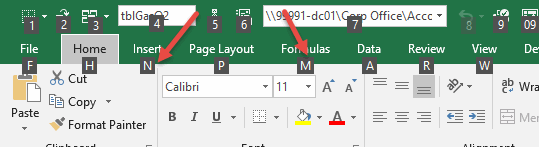
I’m using Excel 2010 at work and home. Previously I was using 2003 at work. I do a lot of work on Excel at home, so I’m no stranger to 2010. But most of what I do at home is VBA. Now that I’m using the UI more extensively, it has been somewhat of a transition. I’m retraining myself to use the Ribbon shortcuts instead of the old 2003 ones. Most notably Alt+d+p+n+n+f is replaced by Alt+n+v+t+enter (do you know what that does without looking?). I don’t have to give up on the 2003 shortcuts, but now that I don’t use it anymore, I may as well.

Another transition is the amount of data I’m dealing with. At a small company, I could download every transaction for the entire year into one workbook. Not so much anymore. For the first time in my life, I am reading Charles Williams’ website with more than just a passing curiosity. I’ve never had to be “efficient” with my formulas before. Now I see how half a million SUMPRODUCT formulas feels and it’s not good.

You might think with larger data sets that you’ll be seeing more PowerPivot posts from me. Nope. I’m not investing time into an add-in that may not be in my next version. I work at a company where I am not the IT department (that’s a new situation for me) and I don’t control what versions we buy. Maybe I could have some influence on IT and get what I need. Or maybe Microsoft can kiss off and I’ll use my IT chips elsewhere. I get it. They want to segment their customers and make more money. I have no problem with that. I’m just not biting.

Currently, the only way I can get data out of our accounting system is by printing a fixed-width report and importing into Excel. Expect to see some posts on that topic in the near future.

Finally, you can expect to hear me complaining about how IT is thwarting my productivity. I can’t even install Jimmy’s Amazon link generator because I don’t have admin rights. It’s just desserts though. I’ve been making a modest side-job living creating VBA solutions that end-around IT departments for over a decade.

VBE Code Indenter for the Macintosh

I lived in two worlds. My work was done on a PC, but my home computer has been a Mac since the Mac Plus. One thing my work PC had that my Mac never did was a code indenter for prettifying macro code. I’m partial to Stephen Bullen’s “Smart Indenter,” but others exist, such as Andrew Engwirda’s, found over here. Neither one works on a Mac because the Mac doesn’t have the same innards in the editing environment. “Never did” was until a free snowy weekend, when I wrote one in AppleScript. AppleScript exists on any Mac, and this script will indent any VBA routine. It uses a stack (implemented as an AppleScript list.) For an indent you push the stack, and for an out-dent you pop the stack. Two of the trigger phrases are more complicated. Else (and Else If) need an out-dent followed by an indent, or a pop and a push. Case requires an indent for the first one, an out-dent and an indent for the following ones, and then since End Select closes out Case, two out-dents, or two pops.

There’s probably a way to get to the editor’s native elements, but I couldn’t find it. I scripted the GUI instead. Here’s the script. AppleScript is about as self-documenting as it gets.

set TabSize to 3 -- spaces per tab.  Adjust to suit
set AlignDimAsToTabs to true -- Adjust to suit
set PutDimAsAtTab to 7 -- Adjust to suit
set OldCode to ""
set NewCode to ""
set templine to ""
set Tabs to 0
set Stack to {1}
set CaseStack to {}
set ThisLine to {}
set NoTabs to {"Option Explicit", "Sub", "Private", "Public", "Function", "Type", "Enum", "End Sub", "End Function"}
set OneTab to {"Dim", "ReDim", "Static", "Stop", "Debug", "#If", "#Else", "#End"}
set PushTabs to {"For", "With", "Do", "Select", "Case"}
set IfTabs to {"If", "Else", "End If"} --Push, Pop & Push, Pop
set PopTabs to {"Next", "End With", "Loop", "End Select"}
set the clipboard to OldCode
tell application "System Events"
    tell application id "com.microsoft.Excel" to activate
    tell application process "Microsoft Excel" --scripting the GUI
        set myList to (get name of windows)
        repeat with i from 1 to count of myList
            try
                if last word of item i of myList is "Code" then
                    exit repeat
                end if
            end try
        end repeat
        perform action "AXRaise" of window i
    end tell
    keystroke "a" using command down
    delay 1
    keystroke "c" using command down
    delay 1
    --if nothing happens, make sure your code window is frontmost.
end tell
set OldCode to the clipboard
set C to count of paragraphs of OldCode
set AppleScript's text item delimiters to space
repeat with N from 1 to C
    try
        set WasFound to false
        set LineOfCode to paragraph N of OldCode
        if length of LineOfCode > 1 then
            repeat while character 1 of LineOfCode is space
                if length of LineOfCode = 1 then exit repeat
                set LineOfCode to text 2 thru -1 of LineOfCode
            end repeat
            repeat with i from 1 to (count of characters of LineOfCode) - 1
                set char1 to character i of LineOfCode
                set char2 to character (i + 1) of LineOfCode
                if not (char1 is space and char2 is space) then
                    set templine to templine & char1
                end if
            end repeat
            set templine to templine & char2
            set LineOfCode to templine
            set templine to ""
                        set char2 to ""
        end if
        set L1 to length of LineOfCode
        if L1 > 1 then
            repeat with i from 1 to count of NoTabs
                set ItemText to item i of NoTabs
                set L2 to length of ItemText
                if L1 ≥ L2 then
                    if ItemText = text 1 thru L2 of LineOfCode then
                        set WasFound to true
                        exit repeat
                    end if
                end if
            end repeat
            if WasFound is false then
                repeat with i from 1 to count of OneTab
                    set ItemText to item i of OneTab
                    set L2 to length of ItemText
                    if L1 ≥ L2 then
                        if ItemText = text 1 thru L2 of LineOfCode then
                            if AlignDimAsToTabs is true and (ItemText = "Dim" or ItemText = "Static") and ¬
                                                                LineOfCode does not contain "(" then
                                set j to 1
                                repeat with i from 1 to count of characters of LineOfCode
                                    if character i of LineOfCode is space then
                                        set ThisLine to ThisLine & text j thru (i - 1) of LineOfCode
                                        set j to i + 1
                                    end if
                                end repeat
                                set ThisLine to ThisLine & text j thru i of LineOfCode
                                set x to (length of ItemText) + (length of item 2 of ThisLine) + 2
                                set y to TabSize * (PutDimAsAtTab - 1) --take one away, add it back below
                                set txt to "As"
                                repeat with i from 1 to (y - x)
                                    set txt to space & txt
                                end repeat
                                set item 3 of ThisLine to txt
                                set LineOfCode to ThisLine as string
                                set ThisLine to {}
                            end if
                            set Tabs to 1
                            set LineOfCode to pad_the_line(LineOfCode, TabSize * Tabs) --add it back
                            set WasFound to true
                            exit repeat
                        end if
                    end if
                end repeat
            end if
            if WasFound is false then
                repeat with i from 1 to count of PushTabs
                    set ItemText to item i of PushTabs
                    if ItemText = first word of LineOfCode then
                        set Tabs to last item of Stack
                        if ItemText = "Select" then set CaseStack to CaseStack & (false) --push the stack
                        if ItemText = "Case" then
                            if last item of CaseStack is true then set Stack to pop_the_stack(Stack)
                            if last item of CaseStack is false then set the last item of CaseStack to true
                        end if
                        set Tabs to last item of Stack
                        set LineOfCode to pad_the_line(LineOfCode, TabSize * Tabs)
                        set Stack to Stack & (Tabs + 1) --push the stack
                        set WasFound to true
                        exit repeat
                    end if
                end repeat
            end if
            if WasFound is false then
                repeat with i from 1 to count of IfTabs
                    set ItemText to item i of IfTabs
                    set L2 to length of ItemText
                    if L1 ≥ L2 then
                        if (ItemText = text 1 thru L2 of LineOfCode) and (last word of LineOfCode is not "Then") and (last character of LineOfCode is not "_") and (ItemText = "If") then --If...
                            set Tabs to last item of Stack
                            set LineOfCode to pad_the_line(LineOfCode, TabSize * Tabs)
                            set WasFound to true
                            exit repeat
                        else if (ItemText = text 1 thru L2 of LineOfCode) and (ItemText = "Else") then --Else, Else If
                            set Stack to pop_the_stack(Stack)
                            set Tabs to last item of Stack
                            set LineOfCode to pad_the_line(LineOfCode, TabSize * Tabs)
                            set Stack to Stack & (Tabs + 1) --push the stack
                            set WasFound to true
                            exit repeat
                        else if (ItemText = text 1 thru L2 of LineOfCode) and (last word of LineOfCode = "Then") then --If...Then
                            set Tabs to last item of Stack
                            set LineOfCode to pad_the_line(LineOfCode, TabSize * Tabs)
                            set Stack to Stack & (Tabs + 1) --push the stack
                            set WasFound to true
                            exit repeat
                        else if (ItemText = text 1 thru L2 of LineOfCode) and (last character of LineOfCode = "_") then --If..._
                            set Tabs to last item of Stack
                            set LineOfCode to pad_the_line(LineOfCode, TabSize * Tabs)
                            set Stack to Stack & (Tabs + 1) --push the stack
                            set WasFound to true
                            exit repeat
                           
                        else if ItemText = text 1 thru L2 of LineOfCode then --End If
                            set Stack to pop_the_stack(Stack)
                            set Tabs to last item of Stack
                            set LineOfCode to pad_the_line(LineOfCode, TabSize * Tabs)
                            set WasFound to true
                            exit repeat
                        end if
                    end if
                end repeat
            end if
            if WasFound is false then
                repeat with i from 1 to count of PopTabs
                    set ItemText to item i of PopTabs
                    set L2 to length of ItemText
                    if L1 ≥ L2 then
                        if ItemText = text 1 thru L2 of LineOfCode then
                            if ItemText = "End Select" then
                                set CaseStack to pop_the_stack(CaseStack)
                                set Stack to pop_the_stack(Stack)
                            end if
                            set Stack to pop_the_stack(Stack)
                            set Tabs to last item of Stack
                            set LineOfCode to pad_the_line(LineOfCode, TabSize * Tabs)
                            set WasFound to true
                            exit repeat
                        end if
                    end if
                end repeat
            end if
            if WasFound is false then
                set Tabs to last item of Stack
                set LineOfCode to pad_the_line(LineOfCode, TabSize * Tabs)
            end if
        end if
        set NewCode to NewCode & LineOfCode & return
    on error error_message number error_number
        if error_number is -1728 then
            --Can’t get last item of {}.
            set alert_string to "Extra Code Block End" as string
            set AppleScript's text item delimiters to " or "
            set message_string to ¬
                ("There looks to be an extra code block end line of either \n{" & PopTabs as string) & ¬
                " or End If}\nin your code, as the Stack is empty {}. Ending. Your code is not changed."
            display alert alert_string message message_string as warning buttons {"OK"}
            set AppleScript's text item delimiters to ""
            return
        end if
    end try
end repeat

set the clipboard to ""
delay 0.5
set the clipboard to NewCode
tell application "System Events"
    tell application id "com.microsoft.Excel" to activate
    keystroke "v" using command down
end tell
if last item of Stack is not 1 then
    set alert_string to "Extra Code Block Start"
    set AppleScript's text item delimiters to " or "
    set message_string to ¬
        ("There looks to be an extra code block start line of either \n{" & PushTabs as string) & ¬
        " or If}\nin your code, as the Stack did not return to {1}."
    display alert alert_string message message_string buttons {"OK"} ¬
        giving up after 10
end if
set AppleScript's text item delimiters to ""

on pop_the_stack(this_list)
    set this_list to reverse of this_list
    set this_list to rest of this_list
    set this_list to reverse of this_list
    return this_list
end pop_the_stack

on pad_the_line(ThisLine, pad)
    repeat with j from 1 to pad
        set ThisLine to space & ThisLine
    end repeat
    repeat while last character of ThisLine is space
        set ThisLine to text 1 thru -2 of ThisLine
    end repeat
    return ThisLine
end pad_the_line

The script checks for two things: If the stack at the end is not {1}, then you have too many indents. AppleScript won’t complain, and the editor probably showed you it to you any way. On the other hand, if you have too many out-dents, you can’t pop an empty stack, and Applescript throws an error. The script above catches that, and makes no changes.

Stephen Bullen provides some sample code. I stole it, and added some of my own.

Option Explicit

'Example Procedure
Sub ExampleProc()

'Smart Indenter
'(c) 1998-2004 by Office Automation ltd.

Dim iCount As Integer
Static sName As String

If YouWantMoreExamplesAndTools Then
'Visit http://www.oaltd.co.uk

Select Case X
Case "A"
'If you have any comments or suggestions, _
or find valid VBA code that isn't indented correctly,

#If VBA6 Then
MsgBox "Please comment below."
#End If

Case "Continued strings and parameters can be" _
& "lined up for easier reading, optionally ignoring" _
, "any operators (&+, etc) at the start of the line."
'Not implemented in Applescript.

Debug.Print "X<>1"
End Select ' Case X
End If 'More Tools?
End Sub

Sub Proc()
Dim mrt As Double
Select Case Row
Case 1
Select Case Col
Case 1
action 1
Case 2
action 2
End Select
Case 2
Select Case Col
Case 1
action 3
Case 2
action 4
End Select
Case Else
action 5
End Select
End Sub

Running the script, it looks like this:

Option Explicit

   'Example Procedure
Sub ExampleProc()

   'Smart Indenter
   '(c) 1998-2004 by Office Automation ltd.

   Dim iCount        As Integer
   Static sName      As String

   If YouWantMoreExamplesAndTools Then
      'Visit http://www.oaltd.co.uk

      Select Case X
         Case "A"
            'If you have any comments or suggestions, _
            or find valid VBA code that isn't indented correctly,

   #If VBA6 Then
            MsgBox "Please comment below."
   #End If

         Case "Continued strings and parameters can be" _
            & "lined up for easier reading, optionally ignoring" _
            , "any operators (&+, etc) at the start of the line."
            'Not implemented in Applescript.

   Debug.Print "X<>1"
      End Select ' Case X
   End If 'More Tools?
End Sub

Sub Proc()
   Dim mrt           As Double
   Select Case Row
      Case 1
         Select Case Col
            Case 1
               action 1
            Case 2
               action 2
         End Select
      Case 2
         Select Case Col
            Case 1
               action 3
            Case 2
               action 4
         End Select
      Case Else
         action 5
   End Select
End Sub

I didn’t implement Stephen’s procedure/module/project choice, as I don’t think I can. The whole module page is prettified. And I didn’t reverse engineer his control of comments. Line comments go as the next line of code would be indented, and inline comments are as you put them. This script, suitably and easily modified, will work for MS Word macros, too. I tried to find the hooks that would ensure a code module was the front window in the editor, but I had no luck. If nothing happens, you may have the Project or Properties windows frontmost, and Select All and Copy are grayed out. Just click in your module, and you’ll be all set. If you want to change the category of a trigger phrase, it’s straight forward. You’ll have to pay attention to if the phrase is one word or two. If it’s two, you have to compare as text vice as words. Examples are in the script. And please, if you know the inner mechanisms of AppleScript and the VB Editor, leave a note.

…mrt
©¿©¬

Mail Add-in for Excel/Outlook and Apple Mail for the Mac

Hi all

For the Mac users in this forum ?

Check out this Mail add-in for Excel 2011 for the Mac

For more info and download visit the page below:

http://www.rondebruin.nl/MacMail/rdbmailmac.htm


Survey on Excel use

An INFORMS SPRIG email contained a request for a survey on Excel use from Abigail Rose Rebello, a graduate student at Cardiff, who needs the responses for her dissertation. It took me under 10 minutes, interrupted by 2 phone calls, to complete the survey.

From the email I received:
— quote —
Understanding Spreadsheet Usage – Survey

Spreadsheets are crucial elements of today’s business world and grow in importance every day. The usage, development and management techniques of each spreadsheet user appear to be unique. We are interested in studying these diverse characteristics via a global survey. The information you provide will help the student conducting this research to understand the wide ranging differences and similarities be tween different classes of spreadsheet users and developers. It would be really helpful if you took the time to answer a few questions via the survey link posted below.

http://www.surveymethods.com/EndUser.aspx?E0C4A8B1E1AAB1B7E4

- end quote -

Tushar Mehta

SUMIF and COUNTIF on Different Sheets

According to the Brits, the ’50s and ’60s were the golden age of cinema.

I copied the data from BFI site into Excel. I did a little data manipulation to get this list.

My QuickTTC addin came in handy as there is an ASCII 0160 character in there and it split on it nicely. I added the Date column with the formula =DATE(D2,1,1) to see if I could group on decade in a Pivot Table. I couldn’t. So I added the Decade column with this formula =FLOOR(YEAR(F2),10).

From here, you would probably use a Pivot Table/Pivot Chart. Not me. Pivoting is great for analyzing, but I don’t much care for it for reporting and presentation. So I used my MakeUniqueList macro to get a unique list of decades on a new sheet. Next I counted the films and summed the votes like so:

I do this all time, probably because my MakeUniqueList macro creates a new sheet. The normal way to build a SUMIF formula goes like this:

  1. =SUMIF(
  2. Switch sheets
  3. Select first range, F4
  4. Switch back to the formula sheet
  5. Select criteria range
  6. Switch back to the data sheet
  7. Select the sum range, F4
  8. Close paren and enter

and you get =SUMIF(Sheet2!$G$2:$G$53,Sheet5!A2,Sheet2!$E$2:$E$53). I don’t like all that sheet switching and I don’t like unnecessary sheet references in my formulas. Yes, I’m particular. My normal method of creating a SUMIF goes like this:

  1. =SUMIF(
  2. Switch sheets
  3. Select first range, F4
  4. Type ,1, as a placeholder for the criteria
  5. Select the sum range, F4
  6. Close paren and enter
  7. F2 to edit the formala
  8. replace the ’1′ with the cell reference

That’s more palatable to me. Only one sheet switch, but there is a little editing at the end. Never satisfied, I developed this little gem to remove some of the drudgery:

Private Sub mxlApp_SheetChange(ByVal Sh As Object, ByVal Target As Range)
   
    If Target.Count = 1 Then
        If Target.HasFormula Then
            If Target.Column > 1 Then
                If IsIf(Target.Formula) Then
                    Application.EnableEvents = False
                        Target.Formula = Replace(Target.Formula, ",1", "," & Target.End(xlToLeft).Address(False, False))
                    Application.EnableEvents = True
                End If
            End If
        End If
    End If
   
End Sub

Private Function IsIf(ByVal sFormula As String) As Boolean
   
    Dim bReturn As Boolean
   
    Const sSUMIF As String = "=SUMIF("
    Const sCOUNTIF As String = "=COUNTIF("
   
    bReturn = True
    bReturn = bReturn And (Left$(sFormula, Len(sSUMIF)) = sSUMIF Or Left$(sFormula, Len(sCOUNTIF)) = sCOUNTIF)
    bReturn = bReturn And InStr(1, sFormula, ",1") > 0
   
    IsIf = bReturn
   
End Function

These procedures live in my UIHelpers.xla file. I don’t use the Personal Macro Workbook. Instead I have a few addins that separate my procedures by their function or scope of use. That’s why my event procedure above isn’t the typical SheetChange event. It’s in a custom class module with an Application property declared WithEvents. That way it will work on any open workbook.

On to the code: I only want to do the deed when I’m editing one cell, so I check that the Target is a one cell range with the Count property. Next I exclude any entries that aren’t formulas. I’m assuming that my criteria cell is somewhere to the left of the formula I’m entering, so I don’t do anything on formulas entered in column 1 because that’s as left as you can get. My final criteria comes from the custom function IsIf, generally check that it’s a SUMIF or COUNTIF. The custom function makes sure it starts with one of those two functions and also determines that I put the “,1″ placeholder in there.

If all that passes, the placeholder is replaced with the cell reference to the left of the formula cell – all the way to the left if there are several contiguous columns. That may not always be right, but it will be most of the time.

Now I can enter in Sheet5$C2

=SUMIF(Sheet2!$G$2:$G$53,1,Sheet2!$E$2:$E$53)

and it automagically turns into

=SUMIF(Sheet2!$G$2:$G$53,A2,Sheet2!$E$2:$E$53)

If I ever want to make a SUMIF formula with a hardcoded 1 as the criteria, well, I’m screwed.

Navigate a Recordset With a Userform – Part II

In Part I, we created a Userform and added the necessary controls to it. In this post, we’ll build some special purpose procedures to handle the data and the controls on the form.

This form has six events that we need to worry about; Initialize (when the form opens), QueryClose (when it closes), and a click event for each of the four CommandButtons we added. QueryClose will be a clean-up event and not really related to these special purpose procedures. When one of the other five events fires, there are certain aspects of the form that need to be changed. Basically, they are

  1. The TextBoxes need to show the current record of the Recordset
  2. The form needs to prevent the user from making errors (like clicking cmdPrev (<) when they're on the first record.

All this stuff can be done from the event, but you’ll find that you are using very similar, if not the same, code over and over. For that reason, it’s best to separate out these aspect changes into thier own procedure.

There are two module level variables behind this Userform

Dim mADOCon As ADODB.Connection
Dim mADORs As ADODB.Recordset

I use module level variables because I want the Connection and Recordset objects to be ‘in scope’ while the Userform is open. ‘In scope’ means that they will be available to any procedure in the module.

The first procedure will populate the TextBoxes with the data from the current record of the Recordset.

Private Sub FillTextBoxes()
   
    Dim cTxtBx As Control
    Dim lFldNo As Long
   
    For Each cTxtBx In Me.Controls
        If cTxtBx.Tag Like “Field*” Then
            lFldNo = Mid(cTxtBx.Tag, 6)
            cTxtBx.Text = mADORs.Fields(lFldNo)
        End If
    Next cTxtBx
   
End Sub

Remember when we used the Tag property in setting up the TextBoxes? Now we’ll see why. This procedure loops through all the controls on the form, and if the control has a Tag that looks like Field0, Field1, Field2, etc., it uses that field from the Recordset to populate the TextBox. When form starts up or when any of the buttons are clicked, the textboxes will need to change to reflect the event. So this sub will be called from the Initialise event and the click event of each of the four buttons. Those events will first, before calling this sub, set the current record.

One nice thing about this sub is that you can add and delete TextBoxes without changing the code. As long as you fill in the Tag properly, the TextBox will populate properly. It doesn’t check to make sure that the field actually exists, however. For instance, if you put Field10 in a Tag, but your Recordset only had 9 fields, you would have a mess. That’s definitely error checking that I would wan’t to build in to this code, but for simplicity sake, it’s omitted here.

The next sub controls the CommandButtons. If we’re on the first record, we don’t want to give the user the option of going to the first record or the previous record. They’re already on the first and there is no previous record. Similarly, when the current record is the last record, the Last and Next buttons should be disabled. Every time an event fires, we want to make sure that the buttons reflect the current state.

Private Sub DisableButtons(ParamArray aBtnTags() As Variant)

    Dim i As Long
    Dim ctl As Control
   
    For Each ctl In Me.Controls
        ctl.Enabled = True
        For i = LBound(aBtnTags) To UBound(aBtnTags)
            If ctl.Tag = aBtnTags(i) Then
                ctl.Enabled = False
                Exit For
            End If
        Next i
    Next ctl

End Sub

For this procedure, I used a ParamArray argument. You can send in the name of the button (or buttons or no buttons at all) that you want to disable. For instance, if I want to disable the First and Previous buttons, I would call this sub like this:

DisableButtons “ButtonFirst”, “ButtonPrev”

Every button will be enabled (clickable by the user) except the buttons that I pass as arguments. If I call this procedure with no arguments, all the buttons will be enabled. It loops through all the controls on the form and compares their Tag property to the argument list. If it finds a match, the control is disabled. It doesn’t discriminate between TextBoxes, CommandButtons or any other type of control. You just have to be sure that you use the Tag properties judiciously, lest you disable a control you didn’t mean to.

In Part III, we’ll look at the Initialize and QueryClose events. These events will create and destroy the Connection and Recordset objects, respectively. We will also see our special purpose subs in action.