Archive for the ‘Windows API’ Category.

An MSForms Treeview

If you have ever used the Treeview control from the “Additional controls” section, then you know what a versatile control this is to show hierarchically organized data.

There are a couple of problems with this Treeview control:

  1. Compile errors due to a difference in how the control libraries are registered in 32 bits Windows’ System32 and 64 bit Windows’ SysWOW32 folders. If you distribute a file that was saved in 64 bit Windows, containing one of the “Microsoft Windows Common Controls 6.0″ (The Treeview control is one of them) and with the reference set to “mscomctl.ocx”, people using 32 bit Windows will almost certainly have problems. At best it could entail removing both the control and the reference and replacing both, but at worst the user’s Excel can crash when trying to load the file and run the app.
  2. The standard Treeview control, like all non built-in ActiveX controls, cannot be used in 64 bit versions of Office.

Especially the second point convinced me it is time to develop a custom-made Treeview “control”, that only uses the native Office forms controls. I started building this a couple of weeks ago and after some time I tricked Peter Thornton into helping me with it :-)

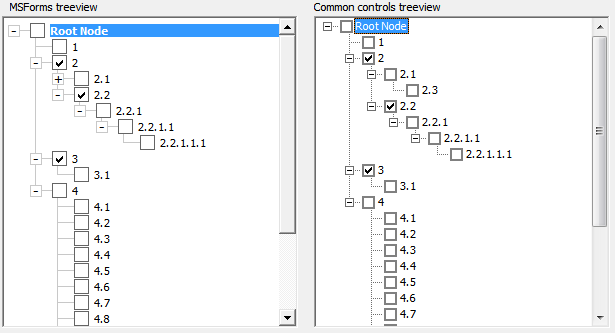
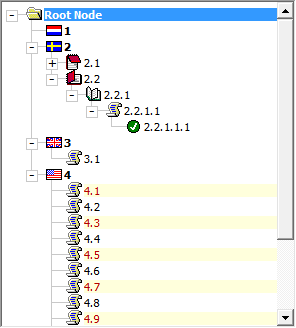
The screenshot below shows both our new Treeview (left) and the Windows one (right) side-by-side:

Not bad, right?

Both Treeviews allow for checkboxes:

And both allow icons (windows Treeview not shown here):

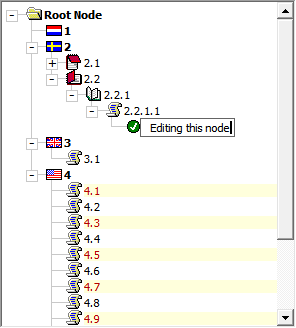
You can also edit a node:

And expand and collapse nodes and navigate the tree using your arrow keys.

We built the custom Treeview using just two class modules. Using it in your project will require nothing more than copying the two classes and adding a bit of plumbing to your userform: some code and an empty frame which will hold the Treeview and possibly a frame with pictures for the icons.

We’re currently doing some cleaning up (like removing obsolete debugging stuff, adding comments and the like), so the “control” is not quite ready to be released to the outside world. Keep an eye on this blog, once we’re done we’ll post here.

Well, what do you think, is this useful or what? What functionality would be critical for you? Let us know!

Regards,

Jan Karel Pieterse

Excel 2013, SDI and modeless userforms

Hi Everyone,

With Excel 2013 we also got new document windowing in Excel; Microsoft decided to make Excel behave the same as Word:

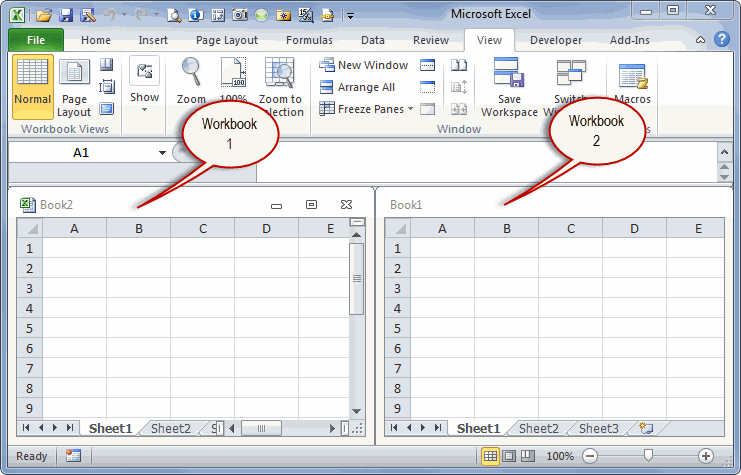
from MDI:

Excel 2010 MDI interface showing two workbooks

The Excel 2010 MDI interface

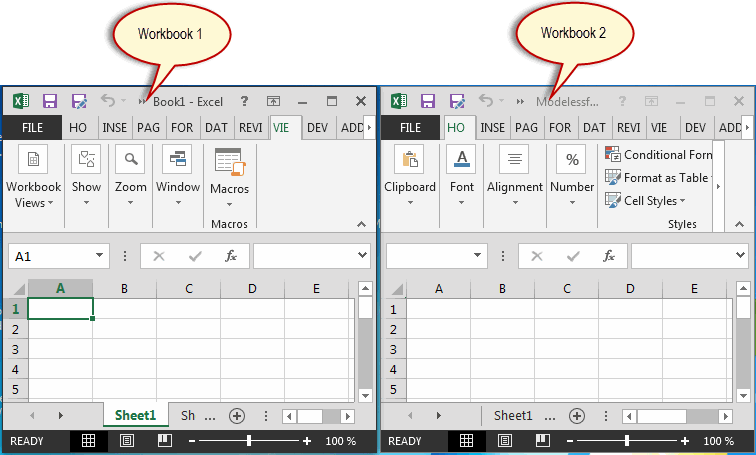
to SDI:

Excel 2013 SDI interface showing two workbooks

The new SDI interface of Excel 2013

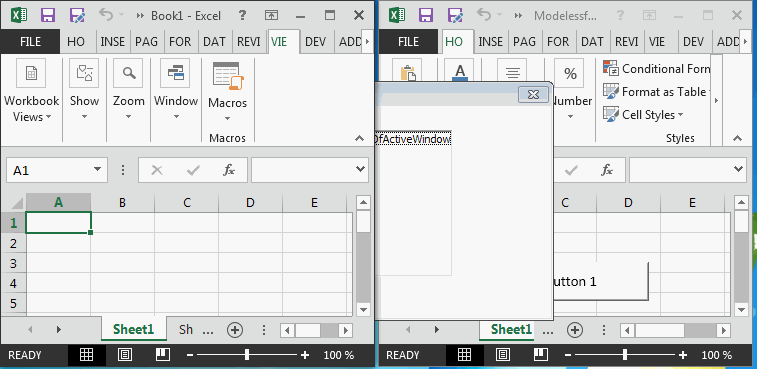
This causes havoc when one shows a modeless userform which should stay on top of all Excel windows:

Excel 2013 SDI can cause a userform to disappear

Excel 2013 SDI can cause a userform to disappear

I’ve devised a way to prevent this problem and written an article about how this was done.

Enjoy!

Regards,

Jan Karel Pieterse

www.jkp-ads.com


Find Matching Data in Array Speed Test

JP has a good post about finding exact matches in arrays. I use a similar method. I Join the array with delimiters around all the values, then use Instr to see if it’s there. Here’s my code:

Function IsInArrayDK(vArr As Variant, sValueToCheck As String, _
    Optional bMatch As Boolean = True) As Boolean
   
    Dim bReturn As Boolean
    Dim sWordList As String
   
    Const sDELIM As String = "|"
   
    'See if it's a match even if only a substring
    bReturn = UBound(Filter(vArr, sValueToCheck)) > -1
   
    'If a match and need exact
    'If exact match not needed, the line above provides the return value
    If bReturn And bMatch Then
        'put pipes around all the values
        sWordList = sDELIM & Join(vArr, sDELIM) & sDELIM
        'See if the values with pipes is there
        bReturn = InStr(1, sWordList, sDELIM & sValueToCheck & sDELIM) > 0
    End If
   
    IsInArrayDK = bReturn
   
End Function

To test, I filled an array with 100,000 random strings, picked one of the strings to find, then timed JP’s funciton, my function, and the non-optimized method. The non-optimized method simply loops through the array and checks for values.

Function IsInArrayLoop(vArr As Variant, sValueToCheck As String, _
    Optional bMatch As Boolean = True) As Boolean
   
    Dim bReturn As Boolean
    Dim i As Long
   
    For i = LBound(vArr) To UBound(vArr)
        If bMatch Then
            If vArr(i) = sValueToCheck Then
                bReturn = True
                Exit For
            End If
        Else
            If InStr(1, vArr(i), sValueToCheck) > 0 Then
                bReturn = True
                Exit For
            End If
        End If
    Next i
   
    IsInArrayLoop = bReturn
   
End Function

The code to fill the array converts Rnd to a string and puts it in the array. Then I pick one of the values (first, middle, and last) as the value I want to check.

Sub FillArray(ByRef vArr As Variant, ByVal lPlace As Long, ByRef sValue As String)
   
    Dim i As Long
   
    For i = 1 To 100000
        vArr(i) = CStr(Int(Rnd * 10000000))
        If i = lPlace Then
            sValue = vArr(i)
        End If
    Next i
   
End Sub

I used the same API timer that JP uses when he does speed tests.

Public Declare Function timeGetTime Lib "winmm.dll" () As Long

And finally, the sub to test loops through the early, middle, and late values-to-check and times them.

Sub TestArray()
   
    Dim aNames(1 To 100000) As Variant
    Dim i As Long
    Dim bResult As Boolean
    Dim lStart As Long, lEnd As Long
    Dim sValueToCheck As String
    Dim aPlace(1 To 3, 1 To 2) As Variant
    Dim sTable As String, sRow As String
   
    'name the tests and determine where the value to check is in the array
    aPlace(1, 1) = "Value Early:": aPlace(1, 2) = 1
    aPlace(2, 1) = "Value Middle:": aPlace(2, 2) = 50000
    aPlace(3, 1) = "Value Late:": aPlace(3, 2) = 99999
   
    'The results go in an html table
    sRow = Tag(Tag("Milliseconds", "td") & Tag("JP", "td") & Tag("DK", "td") & Tag("Loop", "td"), "tr") & vbNewLine
    sTable = sRow
   
    For i = 1 To 3
        sRow = Tag(aPlace(i, 1), "td")
        FillArray aNames, aPlace(i, 2), sValueToCheck
       
        lStart = timeGetTime
        bResult = IsInArrayJP(aNames, sValueToCheck, True)
        lEnd = timeGetTime
        sRow = sRow & Tag(lEnd - lStart, "td")
       
        lStart = timeGetTime
        bResult = IsInArrayDK(aNames, sValueToCheck, True)
        lEnd = timeGetTime
        sRow = sRow & Tag(lEnd - lStart, "td")
       
        lStart = timeGetTime
        bResult = IsInArrayLoop(aNames, sValueToCheck, True)
        lEnd = timeGetTime
        sRow = sRow & Tag(lEnd - lStart, "td")
       
        sTable = sTable & Tag(sRow, "tr") & vbNewLine
    Next i
   
    Debug.Print Tag(sTable, "table", , True)
   
End Sub

The results:

Milliseconds JP DK Loop
Value Early: 53 53 0
Value Middle: 48 53 11
Value Late: 49 54 22

 
JP’s and mine are a wash and the loop is fastest. I guess I should just use that.

Copy Chart as a Picture

I needed to copy a chart to a picture, but I wanted it to be an enhanced metafile (EMF) which is kind of like a vector graphic picture format. EMF graphics scale well when the page resizes.

A user would select the chart, run the macro and a dialog would ask them where to save the picture to – pretty simple, but handy!
It uses the clipboard to do the conversion.

Declare Function OpenClipboard Lib "user32" (ByVal hwnd As Long) As Long
Declare Function CloseClipboard Lib "user32" () As Long
Declare Function GetClipboardData Lib "user32" (ByVal wFormat As Long) As Long
Declare Function EmptyClipboard Lib "user32" () As Long
Declare Function CopyEnhMetaFileA Lib "gdi32" (ByVal hENHSrc As Long, ByVal lpszFile As String) As Long
Declare Function DeleteEnhMetaFile Lib "gdi32" (ByVal hemf As Long) As Long
 
Const CF_ENHMETAFILE As Long = 14
Const cInitialFilename = "Picture1.emf"
Const cFileFilter = "Enhanced Windows Metafile (*.emf), *.emf"
 
Public Sub SaveAsEMF()
    Dim var As Variant, lng As Long
 
    var = Application.GetSaveAsFilename(cInitialFilename, cFileFilter)
    If VarType(var) <> vbBoolean Then
        On Error Resume Next
        Selection.Copy
 
        OpenClipboard 0
        lng = GetClipboardData(CF_ENHMETAFILE)
        lng = CopyEnhMetaFileA(lng, var)
        EmptyClipboard
        CloseClipboard
        DeleteEnhMetaFile lng
        On Error GoTo 0
    End If
End Sub