In Creating State Maps… I copied some data out of an XML file and graphed it into a state map. I wanted to try to read the XML file directly in VBA because I’ve never done it before. First, I set a reference to Microsoft XML v6. Six was the newest version I had, but I don’t know what the differences are.
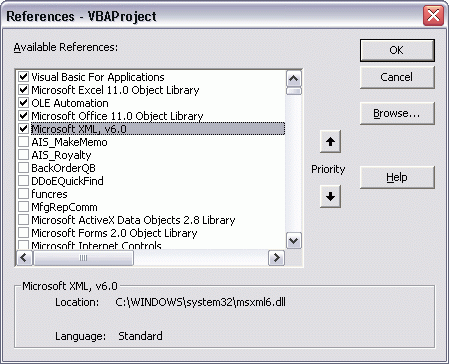
Next I started inspecting the objects via the Object Browser (F2). Definitely DOMDocument was the big one I would need and the Load method took a file name as an argument, so that looked promising. Here’s what I ended up with:
|
1 2 3 4 5 6 7 8 9 10 11 12 13 14 15 16 17 18 19 20 21 22 23 24 25 26 27 28 29 30 31 32 33 34 35 36 37 38 |
Sub ReadStateXML() Dim xmlDom As MSXML2.DOMDocument60 Dim xmlPlaceMark As MSXML2.IXMLDOMNode Dim xmlPolygon As MSXML2.IXMLDOMNode Dim xmlCoord As MSXML2.IXMLDOMNode Dim sName As String Dim vaSpace As Variant, vaComma As Variant Dim i As Long, j As Long Set xmlDom = New MSXML2.DOMDocument60 xmlDom.Load "C:\Downloadsoverlay_1198.kml" For i = 0 To xmlDom.ChildNodes(1).ChildNodes(0).ChildNodes.Length - 1 If xmlDom.ChildNodes(1).ChildNodes(0).ChildNodes.Item(i).nodeName = "Placemark" Then Set xmlPlaceMark = xmlDom.ChildNodes(1).ChildNodes(0).ChildNodes.Item(i) Set xmlPolygon = xmlPlaceMark.ChildNodes(2).ChildNodes(0) Set xmlCoord = xmlPolygon.ChildNodes(0).ChildNodes(0).ChildNodes(0) sName = xmlPlaceMark.ChildNodes(1).ChildNodes(5).nodeTypedValue 'Stop With Sheet4.Cells(Sheet2.Rows.Count, 1).End(xlUp).Offset(1, 0) .Value = sName vaSpace = Split(xmlCoord.ChildNodes(0).Text, " ") For j = LBound(vaSpace) To UBound(vaSpace) vaComma = Split(vaSpace(j), ", ") .Offset(0, 1).Value = vaComma(0) .Offset(0, 2).Value = vaComma(1) Next j End With End If Next i End Sub |
It almost gets the job done, but not quite. I use a lot of XMLNode variables so I can keep track of where I am, but the code is hardly self documenting. The childNodes property only takes an integer as an argument, so I can’t call out the nodes name. This is only slightly better than reading it in as a text file. To be fair, I’ve only started messing with this object library, so maybe I can define a schema that makes things easier. I just don’t know.
Based on this initial chart, it looks like a got the coordinates parsed correctly.
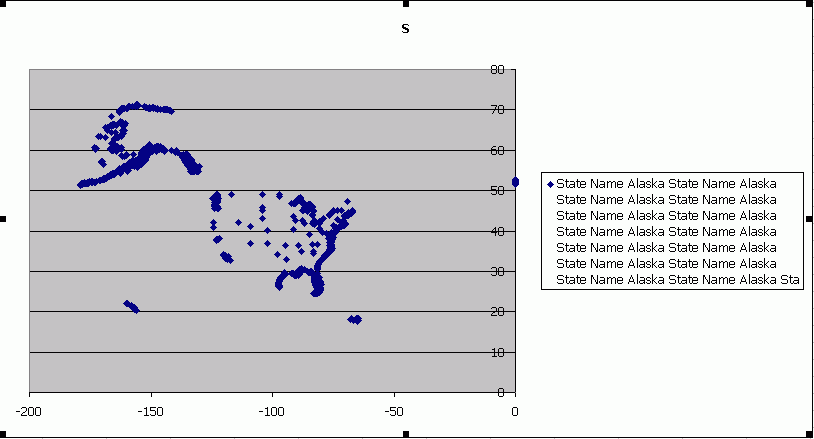
There are few dots over at x=0, y=50. Alaska has a few islands that cross the date line and have x coordinates around 179. Rather than try to convert them, I just converted the x’s to zero. Ultimately I deleted those data points. Also, I should have made each polygon its own series. I don’t know the limit on chart series, but I’ll be I’d have reached it. Having only one series doesn’t allow me to connect the dots.
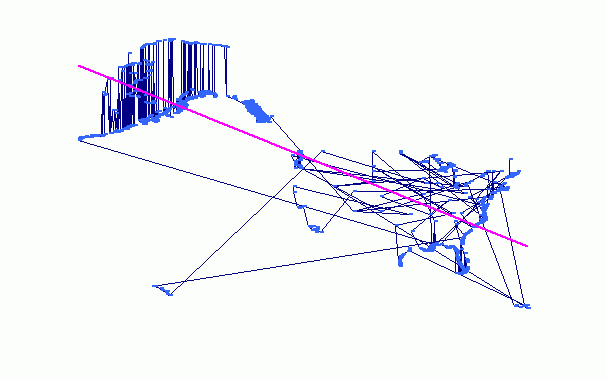
I also added a trend line (in pink). It appears my country is in decline.
Dick,
I’d like to look at the XML file, but you can each node has two methods that I use a lot, SelectNode and SelectSingleNode, you pass an XPATH to each one, and that makes it much easier to find nodes in the DOM tree. For example
Dim nodes as IXMLDOMNodeList
Set nodes = xmlDoc.documentElement.selectNodes(“//Placemark”)
would return a collection of all the nodes names “Placemark” that are descendants of the root node.
As far as I know Microsoft XML v6 gets installed with SQL Server Express 2005. I’ve gone as low as Microsoft XML v3 without seeing a negative impact, even when using XPath calls.
Chapter 12 of the Wrox Excel 2007 VBA book talks about XPath.
The downwards trendline is due to you forgetting to account for Galactic North. Just reverse the signs on the coordinates to remedy.
I handled the offshore islands with the New Zealand map just by plotting the three largest series, to account for our three largest Islands (the 2 largest of which are imaginatively named ‘North Island’ and ‘South Island’. For a great navigator, Captian Cook certainly had a lousy imagination. And he obviously knew nothing about Galactic North).
I also took out some sqiggly fiords and skinny harbours by identifying their coordinates when mousing over the map, and then hiding the series. Makes the map outline more uniformly thin. Bit of a bummer if you want to use the map to plot a sailing course into the fiords, mind.
Sorry, forgot to mention that I was plotting data pulled from the site that John Walkenbach mentioned in your previous post on this. That site sorts the data into discrete shapes – I think that’s what you describe as polygons??
Here’s an example, with the ‘1’ denoting that this is a discrete shape (in fact continuing the Captain Cook flavour above, it’s somewhere in the Cook Islands. I always wanted to visit, and now I kinda have):
1
-0.1573318E+03 -0.2015436E+02
-0.1573225E+03 -0.2017928E+02
-0.1573295E+03 -0.2018168E+02
-0.1573393E+03 -0.2017769E+02
-0.1573423E+03 -0.2017521E+02
-0.1573477E+03 -0.2017001E+02
-0.1573504E+03 -0.2015857E+02
-0.1573518E+03 -0.2014664E+02
-0.1573481E+03 -0.2013648E+02
-0.1573367E+03 -0.2013309E+02
-0.1573203E+03 -0.2013859E+02
-0.1573146E+03 -0.2014332E+02
-0.1573121E+03 -0.2015730E+02
-0.1573182E+03 -0.2017347E+02
-0.1573225E+03 -0.2017928E+02
END
You don’t need a trend line to tell you what’s happening to the USA!
Hi Dick,
Another powerful method is getElementsByTagName. It allows you to -well- get all elements by their tag name:
Dim nNode as MSXML2.IXMLDOMNode
Set nNodeList = oDOM.getElementsByTagName(“Customer”)
For Each nNode in nNodeList
‘Do stuff here
Next
Dick,
As pointed out by others your use of XML has room for improvement. But on a site dedicated to Excel I’m amazed that you (and others) still write crappy code.
IMHO Variants are only used when there’s no alternative, code should run for non US separators and I never pump data to a sheet on a cell by cell basis. Following code does the same as yours, but is tidy. Example is latebound, so a reference to XML 3 or 6 is not needed.
Dim adList() As Double
Dim asText() As String
Dim sFile As String
Dim sXpath As String
Dim i As Long
Dim j As Long
sFile = “C:UsersxxxDocuments1198.kml”
‘Reminder: XML is caseSensitive!
sXpath = “//Placemark/MultiGeometry/Point/coordinates”
With CreateObject(“MSXML2.DOMDocument”)
Debug.Assert Len(Dir(sFile)) ‘Check the file exists
.Load sFile
Debug.Assert .parseError.errorCode = 0
With .documentElement.selectNodes(sXpath)
Debug.Assert .Length
ReDim adList(.Length – 1, 1)
For i = 0 To .Length – 1
asText = Split(.Item(i).Text, “,”)
For j = 0 To 1
‘Use Val not Cstr
adList(i, j) = Val(asText(j))
Next
Next
Range(“A2”).Resize(.Length, 2) = adList
End With
End With
End Sub
You’re surprised I write crappy code? You must be some kind of idealist.
I thought I had to use a Variant for Split. That’s a new one on me. As for writing to cells in a loop, I never do that when it counts – I swear.
keepITCool: on a site dedicated to teaching, sharing, and community; I’m surprised you write ‘crappy’. Guess I must be an idealist too…
I would have just said “code like mine”.
I also thought I needed a variant for Split. I had to test it just now to check. No day is wasted if I learn something.
Hi guys.
I’m not new to VBA but I am to XML and the use of inbuilt parsers.
I am trying to parse an XML file but it is driving me nuts right now. I have an xml file, sampled as follows:
So far I can get the highest level node titles but not the “Categories” which I need and the best, neatest, smallest lot of code I have so far, in a day of looking, trying and modifying is the following:
Sub getWikiInfoViaXML()
Dim xmlDoc As New DOMDocument
Dim fileOK As Boolean
Dim myNode As IXMLDOMElement
Dim myCNode As IXMLDOMNode
Dim a As Integer
fileOK = xmlDoc.Load(“FilePAthallPages.xml”)
a = 2
If fileOK Then
With Sheets(“Wiki Source Docs”)
For Each myNode In xmlDoc.selectNodes(“//page”)
.Cells(a, 1) = myNode.getAttribute(“title”)
a = a + 1
Next myNode
End With
Else
MsgBox “Unable to open the file selected”
End If
End Sub
Any help would be appreciated.
TIA.
Cheers,
BJ
Hmmm that was interesting… the xml code went into the html blackhole.
Here it is again:
‘
‘
‘
‘
‘
‘
‘
‘
‘
‘
‘
‘
‘
‘
‘
‘
‘
‘
‘
‘
‘
‘
‘
‘
I even preceded it with ‘ that time and it still dissapeared.
I’ll take the front bracket off the line and try again so please remember to put it back on. :)
?xml version=”1.0??>
Thank you very much for your post regarding reading XML file .
It is really usefull.
Interesting stuff…
No-one uses the inbuilt parsing functions of Microsoft’s XML document objects if they can avoid it: go find a PERL or a Python developer and pay them some money. Or buy them beer, they don’t get out much.
That being said, we do still need to do this for ourselves from time to time, and I have some VBA lying around to do it. The problem is posting this stuff: Blogspot has issues with source code in general, XML in particular, and anything containing ‘>’ is going to be a major headache when the material is cleaned up for (say) RSS readers.
Let’s see how your custom <code> tags cope with this…
‘ Sample Input file:
‘
‘ <?xml version=”1.0″ encoding=”UTF-8″ standalone=”yes” ?>
‘ <FUND_SETUP User=”Heffernan” DateStamp=”14/09/2010 16:20:29″>
‘ <FUND ID=”FTSE_TRACKER_2007_GBP”>
‘ <Ref_Index>FTSE</Ref_Index>
‘ <Weighting>100</Weighting>
‘ <Currency>GBP</Currency>
‘ </FUND>
‘ <FUND ID=”CAC40_NY_QUANTO”>
‘ <Ref_Index>CAC40</Ref_Index>
‘ <Weighting>40.6221038366675</Weighting>
‘ <Currency>USD</Currency>
‘ </FUND>
‘ <FUND_SETUP>
‘
‘
What we have here (if it’s loaded intellibly) is code to export and reload a very, very simple table: columns and rows, no nested data structure at all.
Even this requires careful wrapping: if you’re lucky, you’ll get away with assuming that your XML-to-Excel parser doesn’t need to be told to look for a root element called FUND_SETUP (all XML files have a root element and I’m told that MS XMLDocument6 never fails to parse to parse it out and read the name) and you don’t need to look for the first-level element name as you get this for free in the ChildNodes collection…
I believe the guy who told me that. But I can see why Python programmers don’t get out much, and I now know why nobody ever buys them beer. Me, I specify the root element, and I specify the names of the elements I want to import.
This code’s taken from a ‘relation’ object: a class that wraps an array and allows us to refer to the rows and columns by name – so what you’ll see in the code sample below is an array (m_arrData), a dictionary of column names (m_dictCols) and a dictionary that acts as a row index (m_dictRows).
What you’ll also see is that there’s a lot of work in a very simple data structure: it’s not just the overhead in all the data-cleaning, no-one’s ever managed to code up an XML import-export library that is truly ‘generic’, even for plain-vanilla relational data.
‘
‘
Public Sub LoadFromXML(objXMLdocument6 As MSXML2.DOMDocument60, _
Optional IndexColumnName As String = “”, _
Optional RootTag As String = “”, _
Optional RowTag As String = “”, _
Optional bIgnoreRowAttributes As Boolean = True, _
Optional bUseFirstRowFormat As Boolean = True)
On Error Resume Next
‘ This method will load tabular data from an XML file
‘ It is sensitive to file format, and will not accept all valid XML data:
‘ files: it expects that the XML file will represent simple tabular data
‘ Optional RootTag As String = “”
‘ Optional, identifies the parent node for the data table.
‘ By default, the root node of the XML document will be used
‘ Optional RowTag As String = “”
‘ Optional, identifies the nodes or entities that we will use as rows in this relation
‘ By default, all child nodes of the root entity will be loaded as rows
‘ Optional IndexColumnName As String = “”
‘ Optional, identifies the data ‘column’ we will use as the unique row identifier
‘ By default, the first attribute or the name of the first child node of the row entity will be used
‘ Optional bIgnoreRowAttributes As Boolean
‘ Read the child nodes only, ignoring the attributes of the entities that define each row
‘ Optional bUseFirstRowFormat As Boolean
‘Do not scan the entire document to determine the column list
‘ Duplicated Row ID’s will be excluded from the final result: we
‘ only retain the row with the first occurrence of a given row ID
‘ Sample usage:
‘
‘ Dim objXMLdocument6 As MSXML2.DOMDocument60
‘ Set objXMLdocument6 = New MSXML2.DOMDocument60
‘ objXMLdocument6.Load “C:TempFund_setup.xml”
‘
‘ Dim relFund_Setup As clsRelation
‘ Set relFund_Setup = New clsRelation
‘ relETF_Setup.LoadFromXML objXMLdocument6, “ID”, “FUND_SETUP”, “FUND”, False, True
‘
‘ Sample Input file:
‘
‘ <?xml version=”1.0″ encoding=”UTF-8″ standalone=”yes” ?>
‘ <FUND_SETUP User=”Heffernan” DateStamp=”14/09/2010 16:20:29″>
‘ <FUND ID=”FTSE_TRACKER_2007_GBP”>
‘ <Ref_Index>FTSE</Ref_Index>
‘ <Weighting>100</Weighting>
‘ <Currency>GBP</Currency>
‘ </FUND>
‘ <FUND ID=”CAC40_NY_QUANTO”>
‘ <Ref_Index>CAC40</Ref_Index>
‘ <Weighting>40.6221038366675</Weighting>
‘ <Currency>USD</Currency>
‘ </FUND>
‘ <FUND_SETUP>
Dim oXMLattribute As MSXML2.IXMLDOMAttribute
Dim oXMLnode As MSXML2.IXMLDOMNode
Dim oXMLnodeRoot As MSXML2.IXMLDOMNode
Dim oXMLnodeChild As MSXML2.IXMLDOMNode
Dim oXMLnodeList As MSXML2.IXMLDOMNodeList
Dim varData As Variant
Dim iRowCount As Integer
Dim iColCount As Integer
Dim iRow As Integer
Dim iCol As Integer
Dim i As Integer
Dim j As Integer
Dim strColName As String
Dim strRowID As String
If RootTag = “” Then
Set oXMLnodeRoot = Nothing
Set oXMLnodeRoot = objXMLdocument6.selectNodes(“/*”).Item(0)
RootTag = oXMLnodeRoot.baseName
Else
Set oXMLnodeList = objXMLdocument6.getElementsByTagName(RootTag)
Set oXMLnodeRoot = oXMLnodeList.NextNode
End If
If oXMLnodeRoot Is Nothing Then
GoTo ExitSub
End If
For Each oXMLattribute In oXMLnodeRoot.Attributes
If Me.Attributes.Exists(oXMLattribute.Name) Then
Me.Attributes(oXMLattribute.Name) = oXMLattribute.Value
Else
Me.Attributes.Add oXMLattribute.Name, oXMLattribute.Value
End If
Next ‘ oXMLattribute
If Not oXMLnodeRoot.hasChildNodes Then
GoTo ExitSub
End If
Set oXMLnodeList = Nothing
If RowTag = “” Then
Set oXMLnodeList = objXMLdocument6.selectNodes(“./*/*”)
Else
Set oXMLnodeList = objXMLdocument6.getElementsByTagName(RowTag)
End If
iRowCount = oXMLnodeList.Length
If iRowCount = 0 Then
GoTo ExitSub
End If
‘ Two passes through the document:
‘ First pass, get the dimensions and column names;
‘ (this pass can be specified as ‘use Row 1 only’)
‘ Second pass, populate the relation’s data array.
Set m_dictCols = Nothing
Set m_dictCols = New Scripting.Dictionary
If IndexColumnName <> “” Then
m_dictCols.Add IndexColumnName, 1
End If
For Each oXMLnode In oXMLnodeList
If bIgnoreRowAttributes = False Then
For Each oXMLattribute In oXMLnode.Attributes
If Not m_dictCols.Exists(oXMLattribute.Name) Then
m_dictCols.Add oXMLattribute.Name, m_dictCols.Count + 1
End If
Next oXMLattribute
End If
For Each oXMLnodeChild In oXMLnode.childNodes
If Not m_dictCols.Exists(oXMLnodeChild.nodeName) Then
m_dictCols.Add oXMLnodeChild.nodeName, m_dictCols.Count + 1
End If
Next oXMLnodeChild
If bUseFirstRowFormat Then
Exit For
End If
Next
If m_dictCols.Count = 0 Then
GoTo ExitSub
End If
If IndexColumnName = “” Then
IndexColumnName = m_dictCols.Keys(0)
End If
iColCount = m_dictCols.Count
Set m_dictRows = New Scripting.Dictionary
iRow = 0
ReDim varData(1 To iRowCount, 1 To iColCount)
For Each oXMLnode In oXMLnodeList
iRow = iRow + 1
If bIgnoreRowAttributes = False Then
For Each oXMLattribute In oXMLnode.Attributes
strColName = “”
strColName = oXMLattribute.Name
If m_dictCols.Exists(strColName) Then
iCol = m_dictCols(strColName)
varData(iRow, iCol) = oXMLattribute.Value
End If
Next oXMLattribute
End If
For Each oXMLnodeChild In oXMLnode.childNodes
If you want to pull in an XML Database you could also try using an XML Editor
This thread is old, but maybe I’ll get lucky
Unfortunately, Nigel code is not complete. Could you attach the full code?
Thank you and best regards
P. S. Sorry for my english
zbiniek
Hi Guys
Thanks for this info. I’m new to both VB and xml. Having read through the posts I think you can help.
I’m need to read co-ordinates data from a kml file and write it into my vba code.
The vb script must first prompt to locate the file in the hard drive. There after the code must read the kml file and locate the co-ordinates node (element) and read. Lastly, the co-ordinates string must be written into a vb module file.
How can this be done?
Cheers
Fiks
plase sample workbook file an xml file
Hi, Dick, Kusleika
http://dailydoseofexcel.com/archives/2009/06/16/reading-xml-files-in-vba/
I need solution about wrong Zig-Zag Lines to plot coordinates Map using 2 ways: 1 VBA Plot Shapes and 1Plot Chart.
i need the original xml file with original coordinates, the wrong chart with wrong lines zig-zag points.
i want make the “way of plot chart ” and “vba way of plot shapes” of coordinates to solution the problem of wrong zig-zag lines, i want import the xml and plot them. I want Plot SVG file too.
an vba routine to delete wrong zig-zag lines on chart is other way i want.
please send to me wokbook an xml files of your Tutorial.
http://dailydoseofexcel.com/archives/2009/06/16/reading-xml-files-in-vba/
Do you have a vba routine to and Plot SVG files to Freeform Shapes in spreedsheet ?
please send to me wokbook an xml files of your Tutorial.
thank you.
Flavio Henrique.
I’m sorry. I don’t have the workbook or the kml file from this post any more.
Thank you, Dick !!
i understand !
Flavio.
Hi Flavio
Here is the file below.
——————————————
Greenfields.kml
1.1
http://maps.google.com/mapfiles/kml/pushpin/ylw-pushpin.png
7f7fff00
1.3
http://maps.google.com/mapfiles/kml/pushpin/ylw-pushpin.png
7f7fff00
normal
#sn_ylw-pushpin41
highlight
#sh_ylw-pushpin001
Greenfields
#msn_ylw-pushpin1300
1
28.36712254260601,-31.09122844215587,0 28.36852568632762,-31.09205635970713,0 28.37070725193103,-31.09131970442457,0 28.37237125751377,-31.09119949375033,0 28.37272307195403,-31.09173320099594,0 28.37420497454973,-31.09260573656255,0 28.37654139336161,-31.09286706957735,0 28.37661005989343,-31.092866571271,0 28.37882158681027,-31.09246602826895,0 28.37901544832623,-31.09174258194492,0 28.37734257075536,-31.09142430113885,0 28.3751636204054,-31.09126283467937,0 28.37377054789957,-31.09028830389094,0 28.37374874276433,-31.08816340989205,0 28.37046043636046,-31.08837960976186,0 28.36778125249606,-31.08900206909804,0 28.36692122596163,-31.0900181414839,0 28.36712254260601,-31.09122844215587,0
——————————————
I’m need to read co-ordinates data from a kml file and write it into my vba code.
The vb script must first prompt to locate the file in the hard drive. There after the code must read the kml file and locate the co-ordinates node (element) and read. Lastly, the co-ordinates string must be written into a vb module file.
tnx in advance.
Hi Flavio
It did not post porperly. Here is a proper one below:
———————————————-
Greenfields.kml
1.1
http://maps.google.com/mapfiles/kml/pushpin/ylw-pushpin.png
7f7fff00
1.3
http://maps.google.com/mapfiles/kml/pushpin/ylw-pushpin.png
7f7fff00
normal
#sn_ylw-pushpin41
highlight
#sh_ylw-pushpin001
Greenfields
#msn_ylw-pushpin1300
1
28.36712254260601,-31.09122844215587,0 28.36852568632762,-31.09205635970713,0 28.37070725193103,-31.09131970442457,0 28.37237125751377,-31.09119949375033,0 28.37272307195403,-31.09173320099594,0 28.37420497454973,-31.09260573656255,0 28.37654139336161,-31.09286706957735,0 28.37661005989343,-31.092866571271,0 28.37882158681027,-31.09246602826895,0 28.37901544832623,-31.09174258194492,0 28.37734257075536,-31.09142430113885,0 28.3751636204054,-31.09126283467937,0 28.37377054789957,-31.09028830389094,0 28.37374874276433,-31.08816340989205,0 28.37046043636046,-31.08837960976186,0 28.36778125249606,-31.08900206909804,0 28.36692122596163,-31.0900181414839,0 28.36712254260601,-31.09122844215587,0
———————————————-
Is there a way I can attach the file?
Hi, Fikile,
i am not have a solution, not have a sample file of this website.
i am working in other probem at this moment.
you can put the file in MEga and share the link in this page.
look at: ClearyAndSimply.com and Developpez Forum.
cheers, good luck.
thank you so much